Crimson Route
Autor:dofo7777Last updated:25/09/2026 11:46:2750.4K2.1MB

Mod Introduction
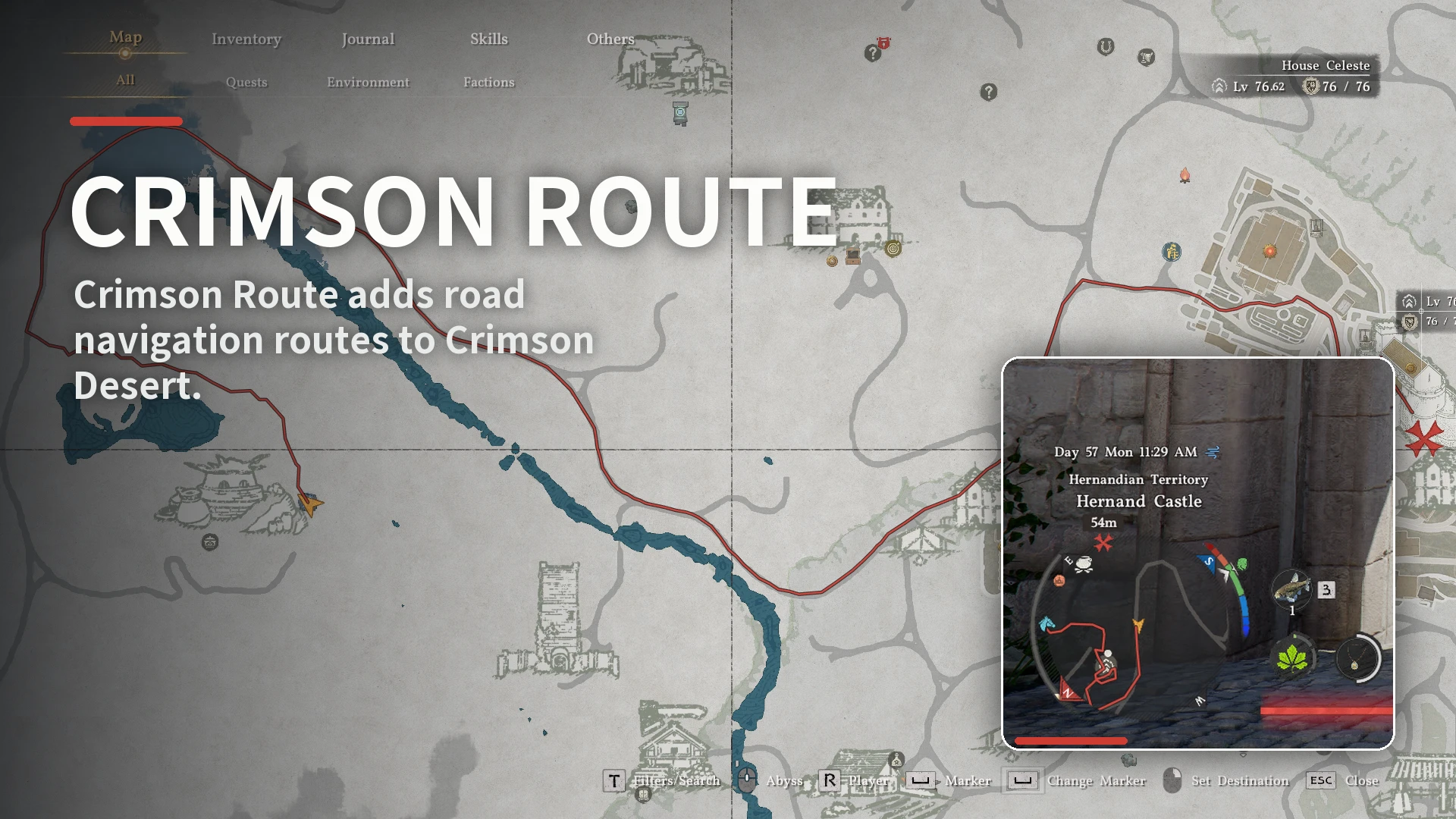
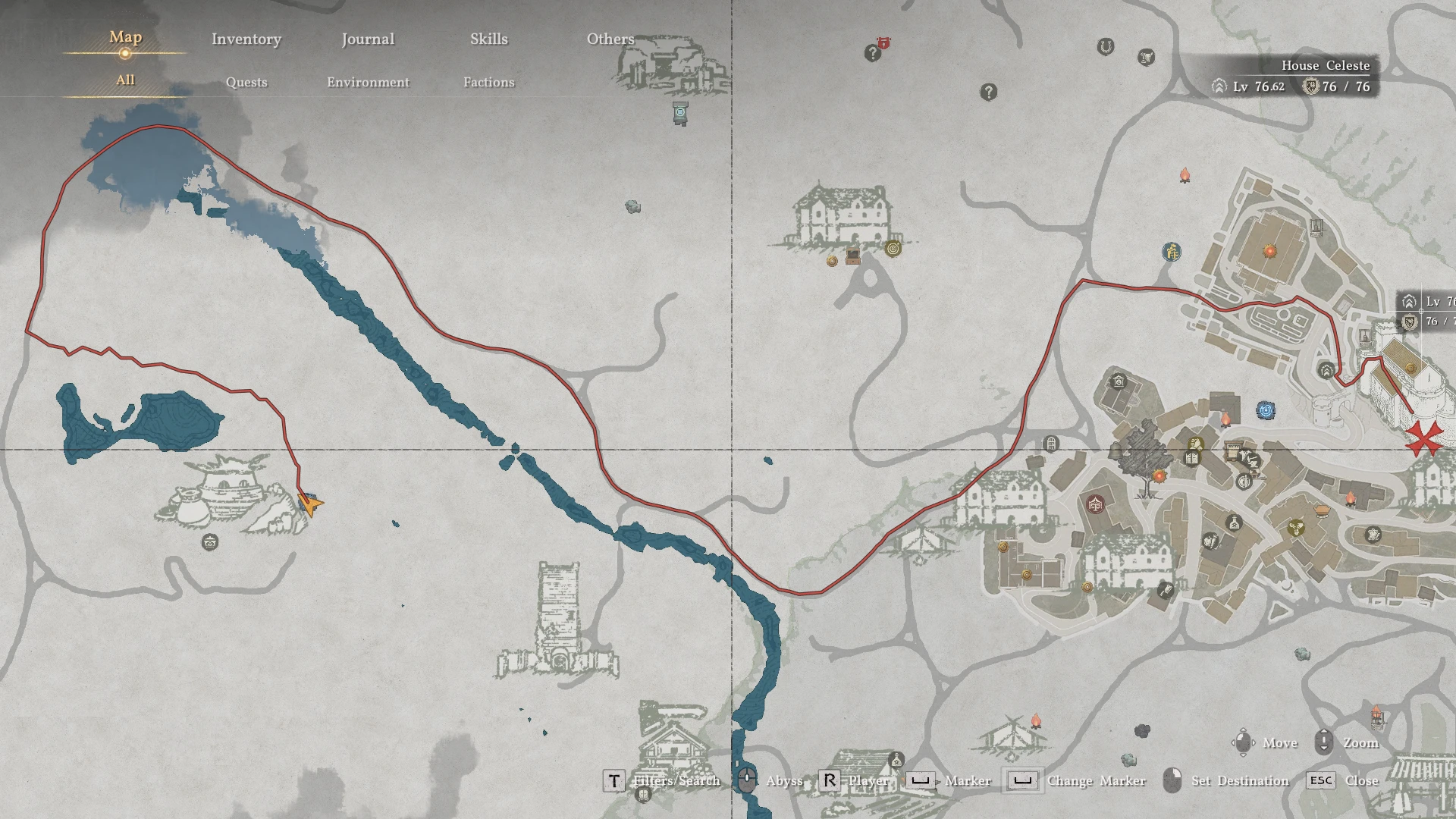
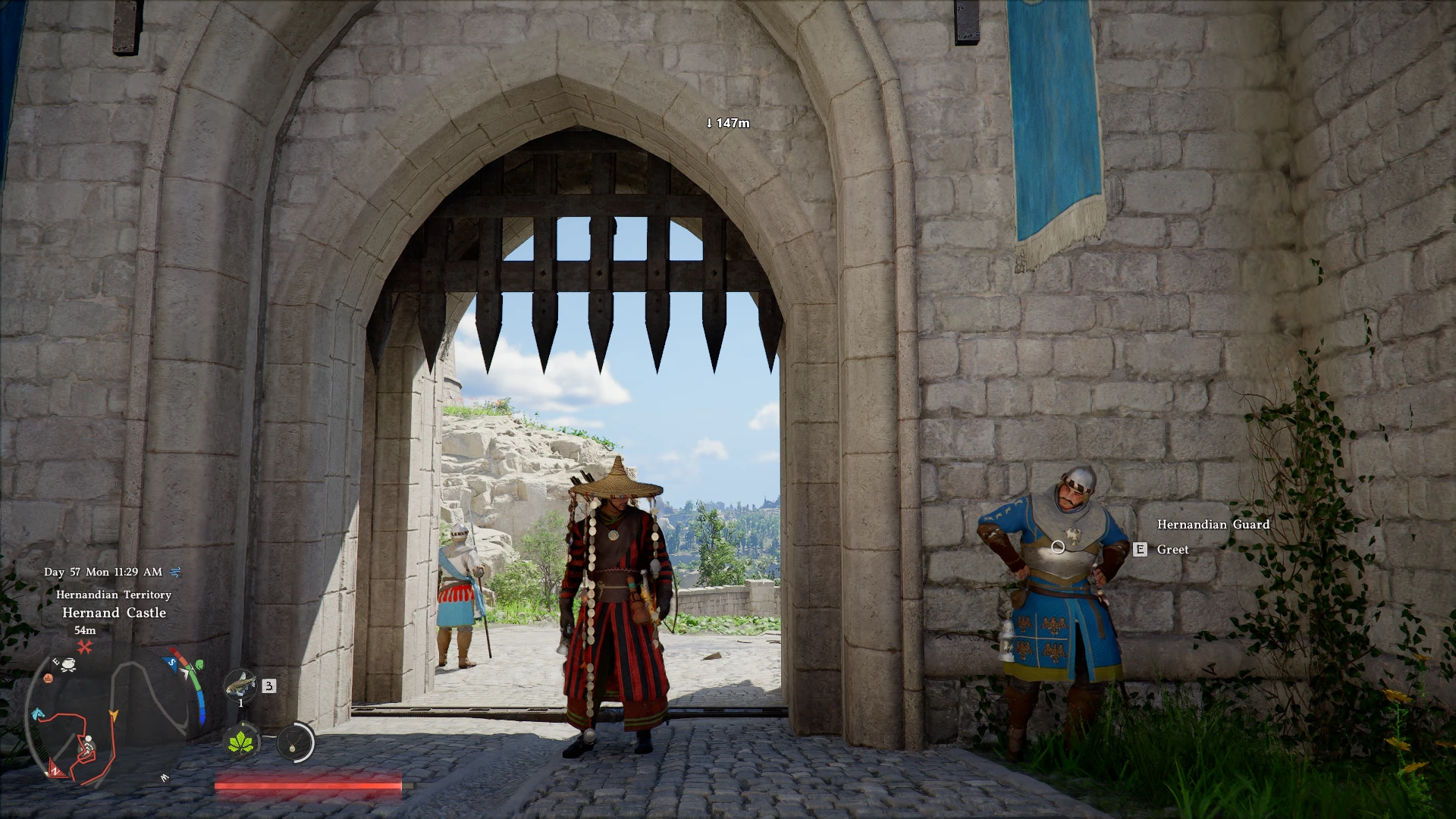
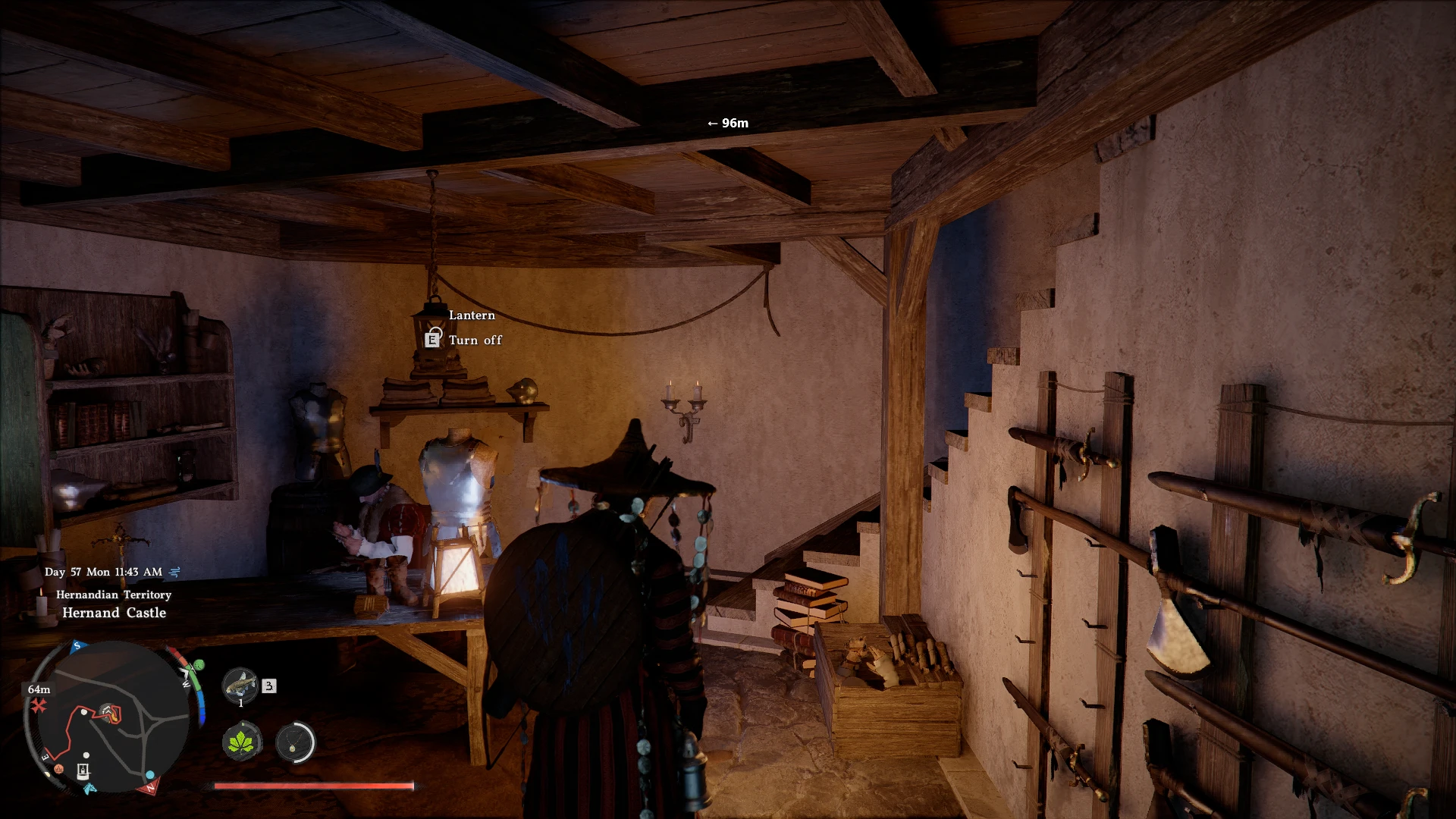
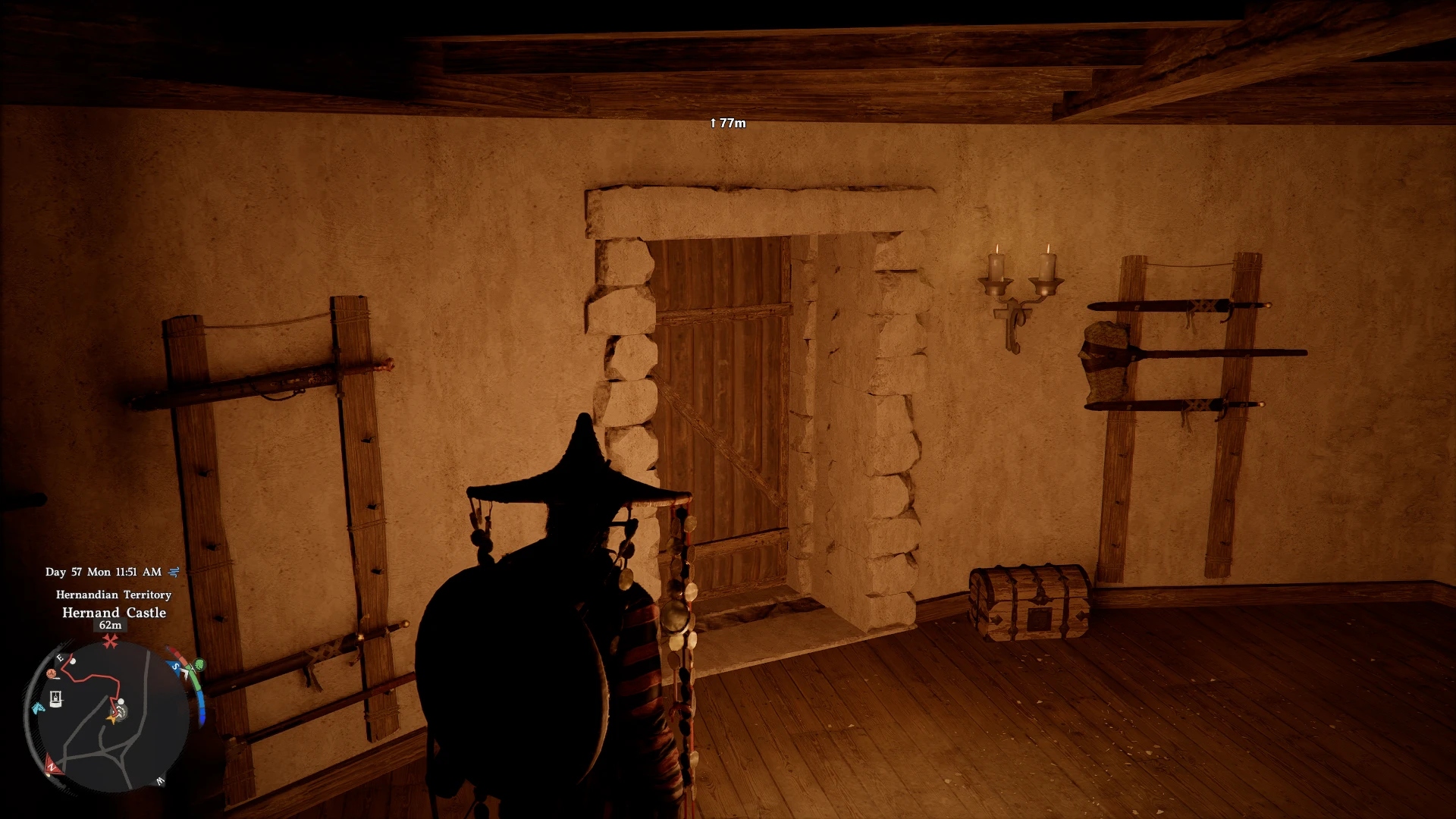
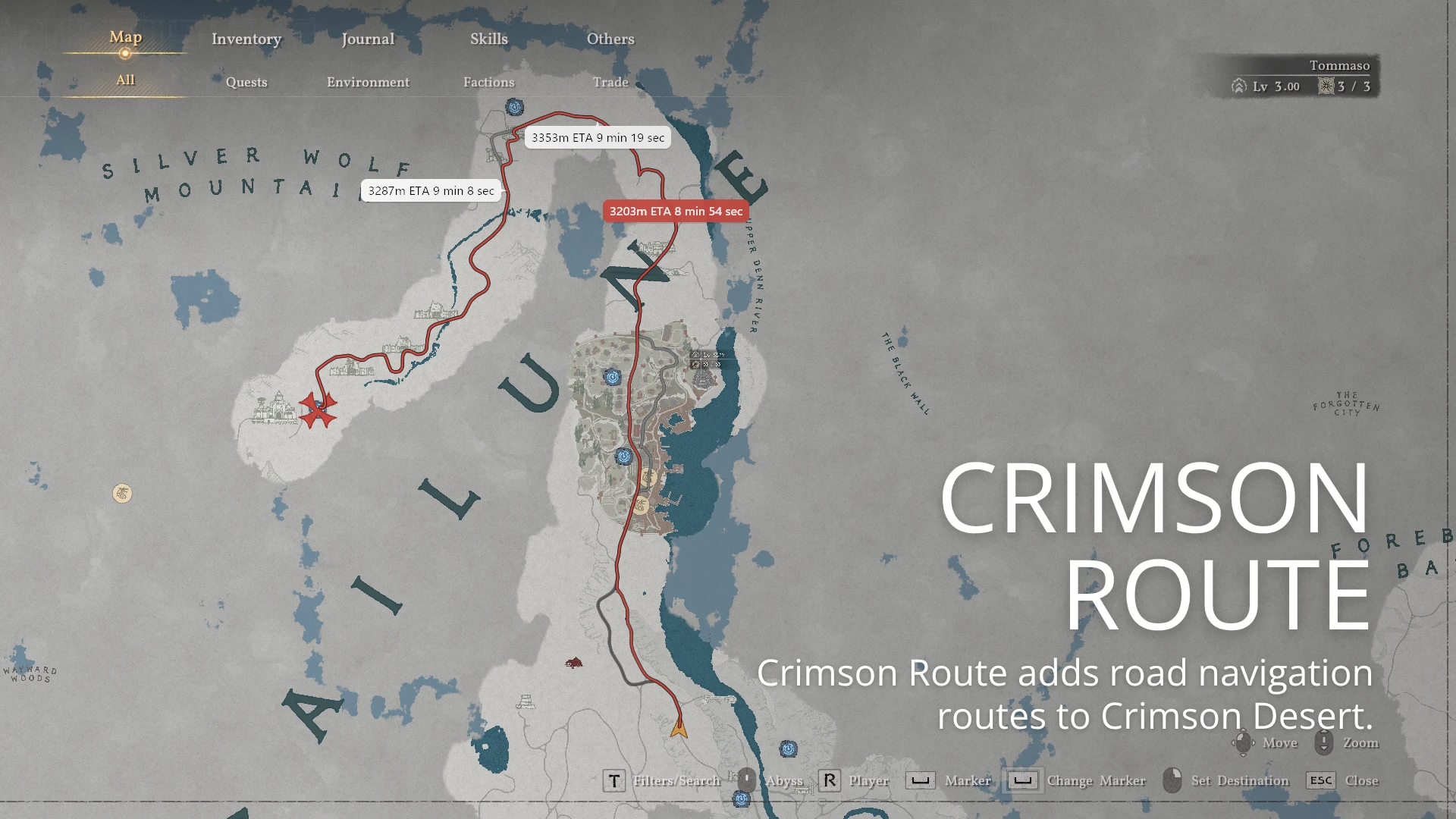
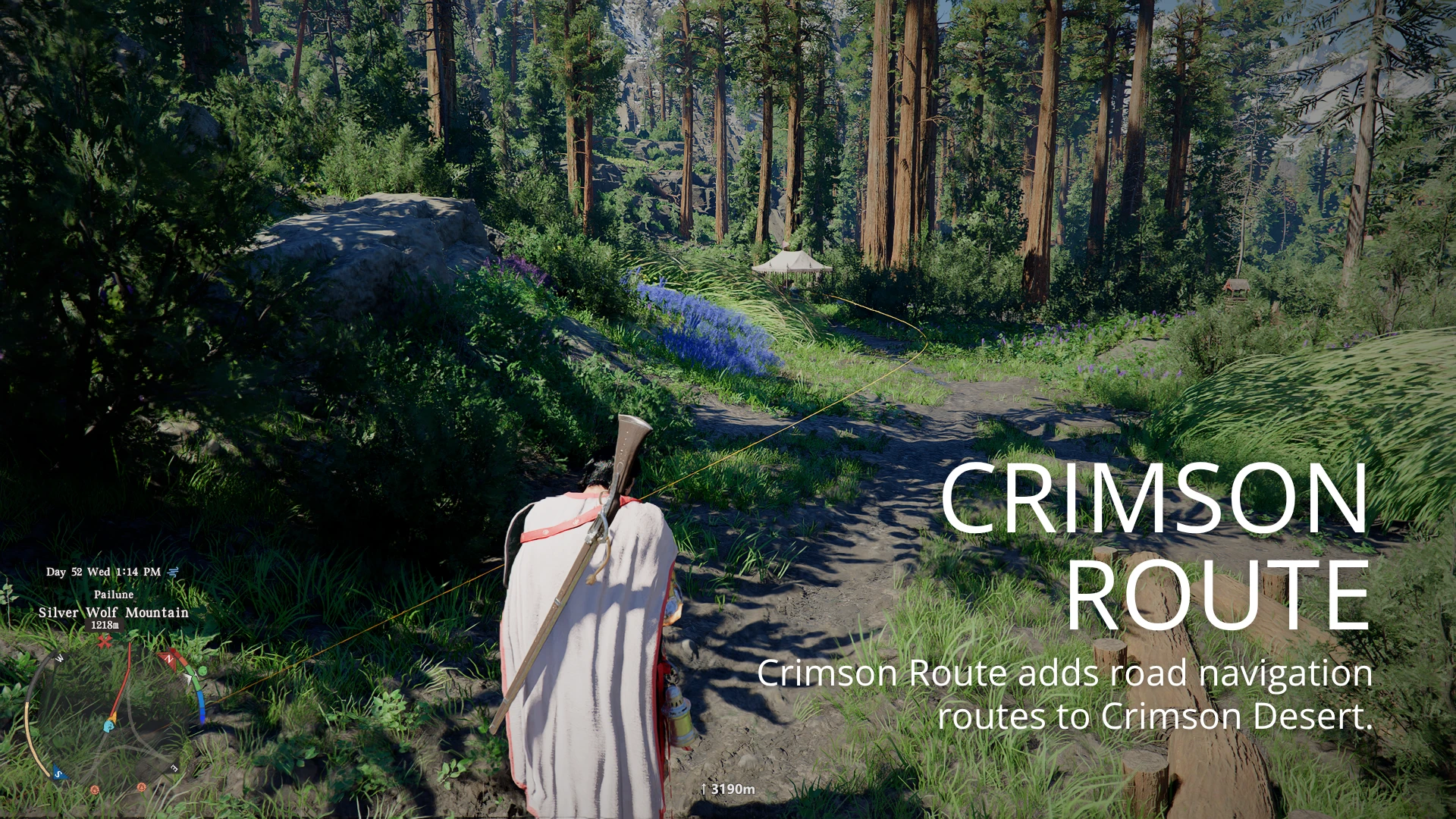
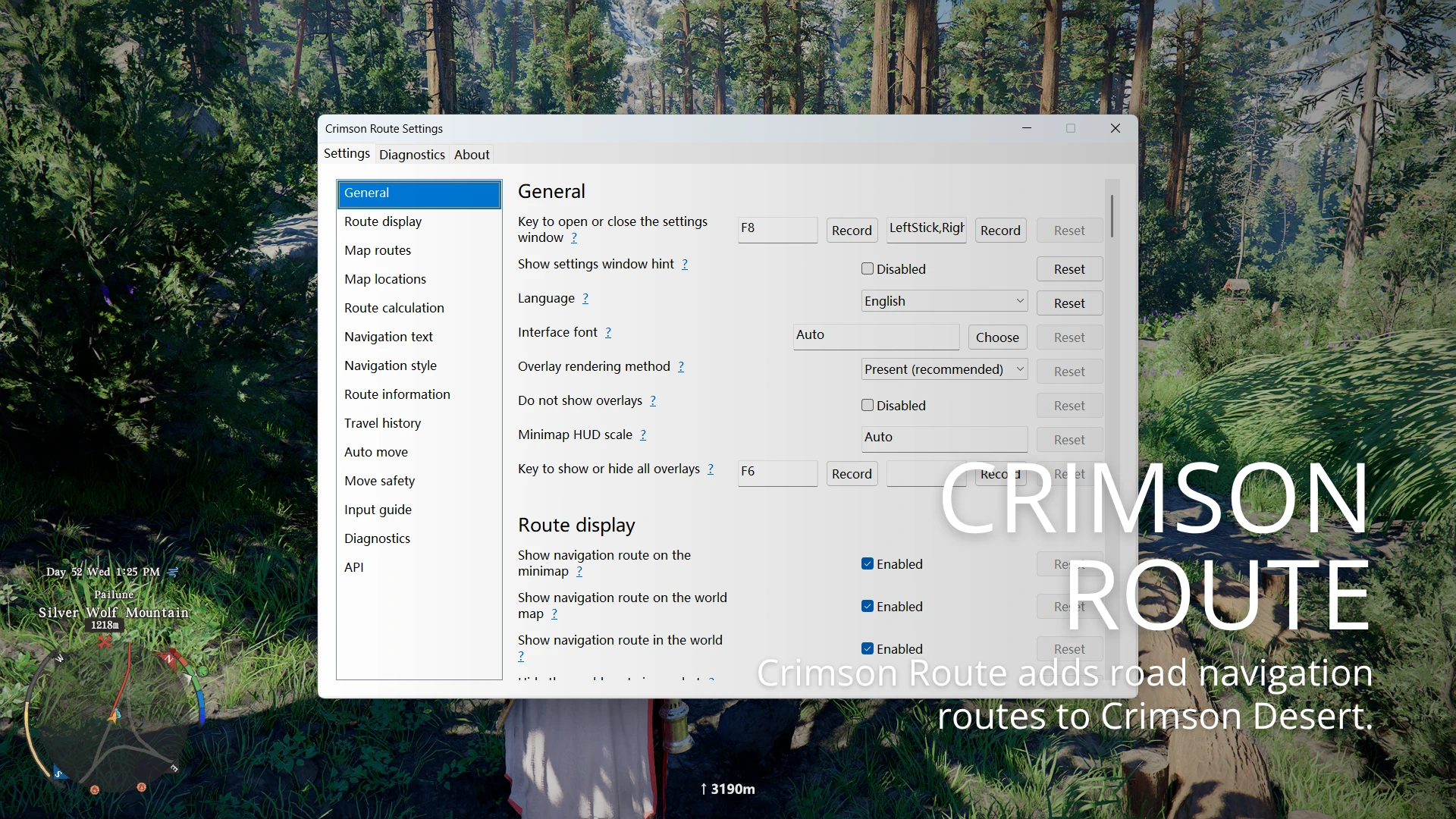
Crimson Route adds road-based navigation routes to Crimson Desert. Track a quest or place a custom marker, and a route will appear on the world map and minimap.
Crimson Route adds road-based navigation routes to Crimson Desert.
Track a quest or place a custom marker, and a route will appear on both the world map and minimap.
Crimson Route adds road-based navigation paths to *Red Desert*.
After tracking a quest or placing a custom map marker, the route will automatically appear on the world map and minimap.
⚠ Any unauthorized individual or organization is strictly prohibited from profiting from this mod's files or content. This mod is provided free of charge, as-is, to all players. If you are creating a modpack, please be sure to clearly credit the original author and provide the link to the release page. If you paid for this mod, please report the seller.
Open CrimsonRoute.ini in a text editor.
[Display]
Minimap=1
WorldMap=1
WorldNavigation=1
[Controls]
ToggleHotkey=
[AutoMove]
Enabled=1
ToggleHotkey=F9
ModeHotkey=F10
DefaultMode=Walk
ObstacleAvoidance=1
[Routing]
RoadPreference=Roads
RoadTypes=All
CustomRoadMultiplier=2.0
HeightAwareRouting=1
[Diagnostics]
Logging=1
[Navigation]
**English:** `Format={TurnDirection} {RemainingDistance}m{AutoMoveActive}{AutoMoveMode}` (Note: The string appears to be a UI format template with placeholders. The variables `{TurnDirection}`, `{RemainingDistance}`, `{AutoMoveActive}`, and `{AutoMoveMode}` are retained as-is per standard localization practice for formatting strings.)
AutoMoveActiveText= Auto-move
AutoMoveWalkText= Walk
AutoMoveRunText= Run
TurnLeftText=←
TurnRightText=→
TurnForwardText=↑
TurnBackwardText=↓
TurnForwardRightText=↗
TurnBackwardRightText=↘
TurnBackwardLeftText=↙
TurnForwardLeftText=↖
[NavigationStyle]
Position=TopCenter
OffsetX=0px
OffsetY=13.5%
FontSize=Auto
TextColor=#FFFFFF
OutlineColor=#000000F5
**Display settings**
Auto-move
Auto-move activates when a tracked target has a valid route. Press F9 to start or stop, and F10 to toggle between Walk and Run. It follows the path and attempts an alternate connected road when the way ahead is blocked. Pressing a movement or sprint key, or switching away from the game, immediately returns control to the player.
**Auto-Move Settings**
Routing settings
Navigation Format Variables
Auto-move status text
These settings only affect {AutoMoveActive} and {AutoMoveMode}. While auto-move is off, both tokens expand to empty strings. While it is on, each token expands independently:
Spacing between active and mode text is controlled directly by Format.
Navigation style
Format={TurnDirection} Tot. {RemainingDistance2}m
TurnLeftText=Turn left
TurnRightText=Turn Right
Continue
TurnBackwardText=Turn Back
TurnForwardRightText=Forward Right
TurnBackwardRightText=Back Right
TurnBackwardLeftText=Back Left
TurnForwardLeftText=Forward left
UTF-8 and UTF-16 configuration files are supported.
Configuration changes are applied without restarting the game. The INI file is re-read approximately every 15 seconds.
Logs and Troubleshooting
“When logging is on, a UTC-timestamped log file is created in the bin64 folder every time the game starts.”
CrimsonRoute-date-timeZ.log
Crimson Route keeps only the five newest log files.
Please include the most recent log file when reporting an issue.
Uninstall
Exit the game completely, then delete:
CrimsonRoute.asi
CrimsonRoute.ini
CrimsonRoute-*.log
Crimson Route does not modify save data or game resource files.
Install
Open CrimsonRoute.ini with a text editor.
[Display]
Minimap=1
WorldMap=1
WorldNavigation=1
[Controls]
ToggleHotkey=
[AutoMove]
Enabled=1
ToggleHotkey=F9
ModeHotkey=F10
DefaultMode=Walk
ObstacleAvoidance=1
[Routing]
RoadPreference=Roads
RoadTypes=All
CustomRoadMultiplier=2.0
HeightAwareRouting=1
[Diagnostics]
Logging=1
[Navigation]
**Translation:** Format={TurnDirection} {RemainingDistance}m{AutoMoveActive}{AutoMoveMode}
AutoMoveActiveText= Auto-move
AutoMoveWalkText= Walk
AutoMoveRunText= Run
TurnLeftText=←
TurnRightText=→
TurnForwardText=↑
TurnBackwardText=↓
TurnForwardRightText=↗
TurnBackwardRightText=↘
TurnBackwardLeftText=↙
↖
[NavigationStyle]
Position=TopCenter
OffsetX=0px
OffsetY=13.5%
FontSize=Auto
TextColor=#FFFFFF
OutlineColor=#000000F5
Display Settings
Auto Move
Auto movement is available when there is a valid path to the tracked target. Press F9 to toggle on/off, and F10 to switch between walking and running. Auto movement will follow the path and attempt alternative connected routes if blocked ahead. Control is immediately returned when the player presses a movement or sprint key, or when the game window loses focus.
Auto-Move Settings
Pathfinding Settings
Navigation Format Variables
Auto-move status text
These settings only affect {AutoMoveActive} and {AutoMoveMode}. When auto-move is off, both placeholders are empty; when on, each expands independently.
The space between "active" and "mode" is directly controlled by Format.
Navigation Indicator Style
Format={TurnDirection} Total Distance {RemainingDistance2}m
TurnLeftText=Turn Left
TurnRightText=Turn Right
TurnForwardText=Go Straight
TurnBackwardText=Back
TurnForwardRightText=Front Right
TurnBackwardRightText=Rear Right
TurnBackwardLeftText=Back Left
TurnForwardLeftText=Front Left
Configuration files support UTF-8 and UTF-16 encoding.
After saving the configuration, there is no need to restart the game—changes take effect automatically; the INI file hot-reloads approximately every 15 seconds.
Logs & Bug Report
When logging is enabled, a log file with UTC timestamp will be created in the bin64 folder each time the game starts.
CrimsonRoute-date-timeZ.log
CrimsonRoute only keeps the five most recent logs.
When reporting an issue, please attach the latest log file.
Uninstall
Completely exit the game, then delete:
CrimsonRoute.asi
CrimsonRoute.ini
CrimsonRoute-*.log
CrimsonRoute does not modify game save files or game resource files.
Crimson Route
Crimson Desert road navigation routes
Add road navigation routes to *Red Desert*
Supported Game Version: 1.14.00
OverviewCrimson Desert road navigation routes
Add road navigation routes to *Red Desert*
Supported Game Version: 1.14.00
Crimson Route adds road-based navigation routes to Crimson Desert.
Track a quest or place a custom marker, and a route will appear on both the world map and minimap.
Crimson Route adds road-based navigation paths to *Red Desert*.
After tracking a quest or placing a custom map marker, the route will automatically appear on the world map and minimap.
⚠ Any unauthorized individual or organization is strictly prohibited from profiting from this mod's files or content. This mod is provided free of charge, as-is, to all players. If you are creating a modpack, please be sure to clearly credit the original author and provide the link to the release page. If you paid for this mod, please report the seller.
- Generates navigation routes for quest targets and custom map markers.
- Shows the route on the world map and minimap, with an optional on-screen navigation arrow and remaining route distance. Each display can be enabled independently.
- Uses the visible world map roads in their original shape, combined with the game's navigation data for road access, local paths, and off-road destinations.
- Provides multiple road priority levels and selectable preferences for travel on foot, horseback, by small wagon, or general use.
- Can use connected buildings, indoor passages, doors, stairs, gates, and interfloor routes when supported by the game’s navigation data.
- Uses the player's current height and reliable destination height when available, helping it stay on the correct cave, interior, stair, slope, entrance, or stacked route instead of an overlapping path above or below.
- Does not draw a straight line to unreachable or off-road points; the route ends at the nearest confirmed connected path.
- Builds long routes progressively so confirmed sections can appear before the full search finishes.
- Optionally follows the current route with normal movement input. F9 toggles on/off; F10 switches between Walk and Run by default.
- Auto-move can align the camera before moving, use connected road branches to recover from a blocked segment, and immediately yields when the player presses a movement or sprint key.
- Auto-move may be unstable. It cannot proactively avoid pedestrians or carts, but will attempt to navigate around them. Wyverns are not supported.
- Routes are not generated in the Abyss or while riding a Wyvern. These areas are high above the ground, so no usable ground route is available.
- Generate navigation routes for mission objectives and custom map markers.
- Display routes on the world map and minimap, with the option to show in-game navigation direction arrows and remaining route distance. Each of the three display modes can be toggled independently.
- Use the visible road shapes on the world map and the game's connectivity navigation data to handle road access, local paths, and destinations that branch off main roads.
- Provides multiple road priority options, with preferences selectable based on general travel, walking, horseback riding, or minivan use.
- When game navigation data allows, routes may utilize buildings, indoor passages, doors, stairs, city gates, and connections between different floors.
- Pathfinding uses the player's current height and, when reliable, the target height to keep routes within the correct caves, interiors, entrances, ramps, stairs, or floors, preventing misconnections to overlapping paths above or below.
- Will not forcibly draw a straight line to unreachable targets or those far from the road; the path will end at the nearest confirmed connected route.
- Long-distance routes will be procedurally generated—confirmed sections can be displayed before the full search is complete.
- You can choose to use standard movement input to automatically follow the current path. Press F9 to toggle on or off by default, and press F10 to switch between walking and running.
- Auto-move rotates the camera to align with the road, uses connected detours to bypass blockages, and immediately returns control when the player presses the move or accelerate button.
- Auto-move may be unstable; it cannot proactively avoid pedestrians and carts but will attempt to go around them. Not supported for wyverns.
- No route will be generated when flying in the Abyss or riding a dragon. These locations are far above the ground, so no ground route is available.
- Exit the game completely.
- Open the game’s bin64 folder.
The default Steam location is usually:
Crimson Desert\bin64 - Make sure a compatible ASI loader is installed, such as winmm.dll.
- Copy the following files from the release package into bin64:
CrimsonRoute.asi
CrimsonRoute.ini - Start the game. If CrimsonRoute.ini is missing, the mod will automatically recreate the default file.
- Track a quest or place a marker on the world map. The navigation route should appear automatically.
Open CrimsonRoute.ini in a text editor.
[Display]
Minimap=1
WorldMap=1
WorldNavigation=1
[Controls]
ToggleHotkey=
[AutoMove]
Enabled=1
ToggleHotkey=F9
ModeHotkey=F10
DefaultMode=Walk
ObstacleAvoidance=1
[Routing]
RoadPreference=Roads
RoadTypes=All
CustomRoadMultiplier=2.0
HeightAwareRouting=1
[Diagnostics]
Logging=1
[Navigation]
**English:** `Format={TurnDirection} {RemainingDistance}m{AutoMoveActive}{AutoMoveMode}` (Note: The string appears to be a UI format template with placeholders. The variables `{TurnDirection}`, `{RemainingDistance}`, `{AutoMoveActive}`, and `{AutoMoveMode}` are retained as-is per standard localization practice for formatting strings.)
AutoMoveActiveText= Auto-move
AutoMoveWalkText= Walk
AutoMoveRunText= Run
TurnLeftText=←
TurnRightText=→
TurnForwardText=↑
TurnBackwardText=↓
TurnForwardRightText=↗
TurnBackwardRightText=↘
TurnBackwardLeftText=↙
TurnForwardLeftText=↖
[NavigationStyle]
Position=TopCenter
OffsetX=0px
OffsetY=13.5%
FontSize=Auto
TextColor=#FFFFFF
OutlineColor=#000000F5
**Display settings**
- Minimap=1 — Shows the route on the minimap.
- WorldMap=1 — Show route on world map.
- WorldNavigation=1 — Shows the navigation indicator over the game view.
- ToggleHotkey — Optional hotkey that toggles all Crimson Route visuals for the current game session. Leave it empty to disable the hotkey. Examples: F10, Ctrl+F10, Shift+Home.
- Logging=1 — Creates diagnostic log files. Set it to 0 to disable logging.
- Set any display option to 0 to disable it individually.
Auto-move
Auto-move activates when a tracked target has a valid route. Press F9 to start or stop, and F10 to toggle between Walk and Run. It follows the path and attempts an alternate connected road when the way ahead is blocked. Pressing a movement or sprint key, or switching away from the game, immediately returns control to the player.
**Auto-Move Settings**
- Enabled=1 — Allows auto-move. Set to 0 to disable the feature.
- ToggleHotkey, ModeHotkey — Start or stop auto-move, and toggle walking or running. Defaults: F9 and F10.
- DefaultMode — Initial mode each time auto-move starts: Walk or Run. Default: Walk.
- MaximumRouteDeviation=20 — Stop auto-move if the character drifts farther than this horizontal distance from the main route. Range: 3-35 metres. Default: 20.
- StuckTimeout=20 — Stop if there is no useful progress for this many seconds. Range: 3-30. Default: 20.
- ObstacleAvoidance=1 — Try another real road when blocked. Auto-move never injects lateral movement.
- ObstacleDetectionTime=1.6 — Number of seconds without forward movement before evasion initiates. Default: 1.6.
Routing settings
- RoadPreference=Shortest — Prioritizes the shortest total route (1.00)
- RoadPreference=Balanced — Moderately prefers recognized roads (1.20)
- RoadPreference=Roads — Default profile, strong road priority (1.50).
- RoadPreference=StrongRoads — Accepts much longer detours to stay on selected roads (2.00).
- RoadPreference=ExtremeRoads — Extreme road priority that may produce very long detours (4.00)
- RoadPreference=Custom — Uses CustomRoadMultiplier. Supports values from 1.00 to 20.00.
- RoadTypes — Use All, Sidewalk, HorseSidewalk, SmallWagon, or a comma-separated combination, e.g., SmallWagon,HorseSidewalk.
- HeightAwareRouting=1 — Uses the player's current height and reliable destination height to avoid overlapping roads on another level and follow connected caves, slopes, stairs, entrances, and stacked routes. The default is 1.
Navigation Format Variables
- {TurnDirection}
- {RemainingDistance}
- {RemainingDistance1}
- {RemainingDistance2}
- {AutoMoveActive} — Auto-move is active
- {Walk/Run}
Auto-move status text
These settings only affect {AutoMoveActive} and {AutoMoveMode}. While auto-move is off, both tokens expand to empty strings. While it is on, each token expands independently:
- **AutoMoveActiveText** — Text displayed in {AutoMoveActive}. Default: "Auto-move". Leave blank to hide the active label.
- Walk
- Run
Spacing between active and mode text is controlled directly by Format.
Navigation style
- Position — Supported values:
TopLeft
Top Center
TopRight
**Center Left**
Center
Center Right
Bottom Left
Bottom Center
Bottom Right - OffsetX and OffsetY — Additional horizontal and vertical offsets. Positive values move the indicator right and down. Both px and % are supported.
- FontSize — Use Auto, a pixel value like 24px, or a percentage such as 2%.
- TextColor and OutlineColor — CSS-style #RRGGBB or #RRGGBBAA colors.
Format={TurnDirection} Tot. {RemainingDistance2}m
TurnLeftText=Turn left
TurnRightText=Turn Right
Continue
TurnBackwardText=Turn Back
TurnForwardRightText=Forward Right
TurnBackwardRightText=Back Right
TurnBackwardLeftText=Back Left
TurnForwardLeftText=Forward left
UTF-8 and UTF-16 configuration files are supported.
Configuration changes are applied without restarting the game. The INI file is re-read approximately every 15 seconds.
Logs and Troubleshooting
“When logging is on, a UTC-timestamped log file is created in the bin64 folder every time the game starts.”
CrimsonRoute-date-timeZ.log
Crimson Route keeps only the five newest log files.
Please include the most recent log file when reporting an issue.
Uninstall
Exit the game completely, then delete:
CrimsonRoute.asi
CrimsonRoute.ini
CrimsonRoute-*.log
Crimson Route does not modify save data or game resource files.
Install
- Exit the game completely.
- Open the game's bin64 folder.
Steam default location is usually:
[System Disk]\Program Files (x86)\Steam\steamapps\common\Crimson Desert\bin64 - Make sure the game has a compatible ASI loader installed, such as winmm.dll.
- Copy the following files from the release archive to bin64:
CrimsonRoute.asi
CrimsonRoute.ini - Launching game. If CrimsonRoute.ini is missing, the mod will automatically recreate the default configuration.
- Track quests or place markers on the world map. Navigation routes will appear automatically.
Open CrimsonRoute.ini with a text editor.
[Display]
Minimap=1
WorldMap=1
WorldNavigation=1
[Controls]
ToggleHotkey=
[AutoMove]
Enabled=1
ToggleHotkey=F9
ModeHotkey=F10
DefaultMode=Walk
ObstacleAvoidance=1
[Routing]
RoadPreference=Roads
RoadTypes=All
CustomRoadMultiplier=2.0
HeightAwareRouting=1
[Diagnostics]
Logging=1
[Navigation]
**Translation:** Format={TurnDirection} {RemainingDistance}m{AutoMoveActive}{AutoMoveMode}
AutoMoveActiveText= Auto-move
AutoMoveWalkText= Walk
AutoMoveRunText= Run
TurnLeftText=←
TurnRightText=→
TurnForwardText=↑
TurnBackwardText=↓
TurnForwardRightText=↗
TurnBackwardRightText=↘
TurnBackwardLeftText=↙
↖
[NavigationStyle]
Position=TopCenter
OffsetX=0px
OffsetY=13.5%
FontSize=Auto
TextColor=#FFFFFF
OutlineColor=#000000F5
Display Settings
- Minimap=1 — Show route on minimap.
- WorldMap=1 — Shows route on the world map.
- WorldNavigation=1 — Display navigation indicators on the game screen.
- ToggleHotkey — Optional hotkey to universally show or hide all visuals of this mod during the current game session. Leave blank to disable the hotkey. Example: F10, Ctrl+F10, Shift+Home.
- Logging=1 — Create diagnostic logs. Set to 0 to disable logging.
- Set any display option to 0 to independently disable the corresponding feature.
Auto Move
Auto movement is available when there is a valid path to the tracked target. Press F9 to toggle on/off, and F10 to switch between walking and running. Auto movement will follow the path and attempt alternative connected routes if blocked ahead. Control is immediately returned when the player presses a movement or sprint key, or when the game window loses focus.
Auto-Move Settings
- Enabled=1 — Enables automatic movement. Set to 0 to disable this feature.
- ToggleHotkey, ModeHotkey — Start/stop auto-move, and toggle walking or running. Defaults: F9, F10 respectively.
- DefaultMode — The initial movement state when auto-move is activated each session: Walk or Run. Default: Walk.
- MaximumRouteDeviation=20 — Stops auto-move when the character’s lateral deviation from the main path exceeds this distance. Range: 3–35 meters, default: 20.
- StuckTimeout=20 — Stops after failing to make meaningful progress for this many seconds. Range: 3–30, default 20.
- ObstacleAvoidance=1 — When blocked ahead, attempt an alternate path; automatic movement will not include lateral movement.
- ObstacleDetectionTime=1.6 — Seconds to wait before detecting obstruction. Default 1.6.
Pathfinding Settings
- RoadPreference=Shortest — Prefer the route with the shortest total distance (1.00).
- RoadPreference=Balanced — Moderately prioritizes identified roads (1.20).
- RoadPreference=Roads — Default preference, strongly prioritizes roads (1.50).
- RoadPreference=StrongRoads — Prefers longer detours to stay on chosen roads (2.00).
- RoadPreference=ExtremeRoads — Prioritizes extreme roads, may result in very long detours (4.00).
- RoadPreference=Custom — Uses CustomRoadMultiplier, supports 1.00–20.00.
- RoadTypes — Use: All, Sidewalk, HorseSidewalk, SmallWagon, or a comma-separated combination, e.g., SmallWagon,HorseSidewalk.
- HeightAwareRouting=1 — Uses the player's current height and reliable target height to avoid mistakenly connecting to overlapping roads on other floors, and navigates along connected caves, ramps, stairs, entrances, and layered roads. Default value is 1.
Navigation Format Variables
- {TurnDirection} — Direction prompt text.
- {RemainingDistance} — Remaining road distance, no decimal places.
- {RemainingDistance1} — Remaining road distance, with one decimal place.
- {RemainingDistance2} — Remaining road distance, with 2 decimal places.
- {AutoMoveActive} — Auto-move On label. Only displayed when this placeholder exists in the Format and auto-move is currently enabled; remove the placeholder to hide it.
- {AutoMoveMode} — Auto-move mode label (Walk/Run). Displayed only when the placeholder is included in the Format and auto-move is currently enabled; remove the placeholder to hide it.
Auto-move status text
These settings only affect {AutoMoveActive} and {AutoMoveMode}. When auto-move is off, both placeholders are empty; when on, each expands independently.
- AutoMoveActiveText — Fills in the text for {AutoMoveActive}. Default: Auto-move. Leave empty to hide the enabled label.
- AutoMoveWalkText — Text inserted into {AutoMoveMode} when in Walk mode (default toggle: F10). Default: Walk. Leave blank to hide the mode label while walking.
- AutoMoveRunText — Text for {AutoMoveMode} when in run mode (default toggle: F10). Default: Run. Leave blank to hide the mode label while running.
The space between "active" and "mode" is directly controlled by Format.
Navigation Indicator Style
- Position — Supports the following roles:
Top Left
TopCenter
TopRight
Center Left
Center
Center Right
Bottom Left
Bottom Center
Bottom Right - OffsetX and OffsetY — add horizontal and vertical offsets based on the anchor point. Positive values move the element right and down respectively. Supports px and %.
- FontSize — Can be set to Auto, pixel values like 24px, or percentages like 2%.
- TextColor and OutlineColor — Use #RRGGBB or #RRGGBBAA hex color format.
Format={TurnDirection} Total Distance {RemainingDistance2}m
TurnLeftText=Turn Left
TurnRightText=Turn Right
TurnForwardText=Go Straight
TurnBackwardText=Back
TurnForwardRightText=Front Right
TurnBackwardRightText=Rear Right
TurnBackwardLeftText=Back Left
TurnForwardLeftText=Front Left
Configuration files support UTF-8 and UTF-16 encoding.
After saving the configuration, there is no need to restart the game—changes take effect automatically; the INI file hot-reloads approximately every 15 seconds.
Logs & Bug Report
When logging is enabled, a log file with UTC timestamp will be created in the bin64 folder each time the game starts.
CrimsonRoute-date-timeZ.log
CrimsonRoute only keeps the five most recent logs.
When reporting an issue, please attach the latest log file.
Uninstall
Completely exit the game, then delete:
CrimsonRoute.asi
CrimsonRoute.ini
CrimsonRoute-*.log
CrimsonRoute does not modify game save files or game resource files.
This tool is provided by the third party [bufftool]

Download Mods For Free
Install LagoFast, start Crimson Desert and play with the mods you love.
We use cookies to make interactions with our websites andservices easy and meaningful. For more information aboutthe cookies we use or to find out how you can disable cookies, click here.