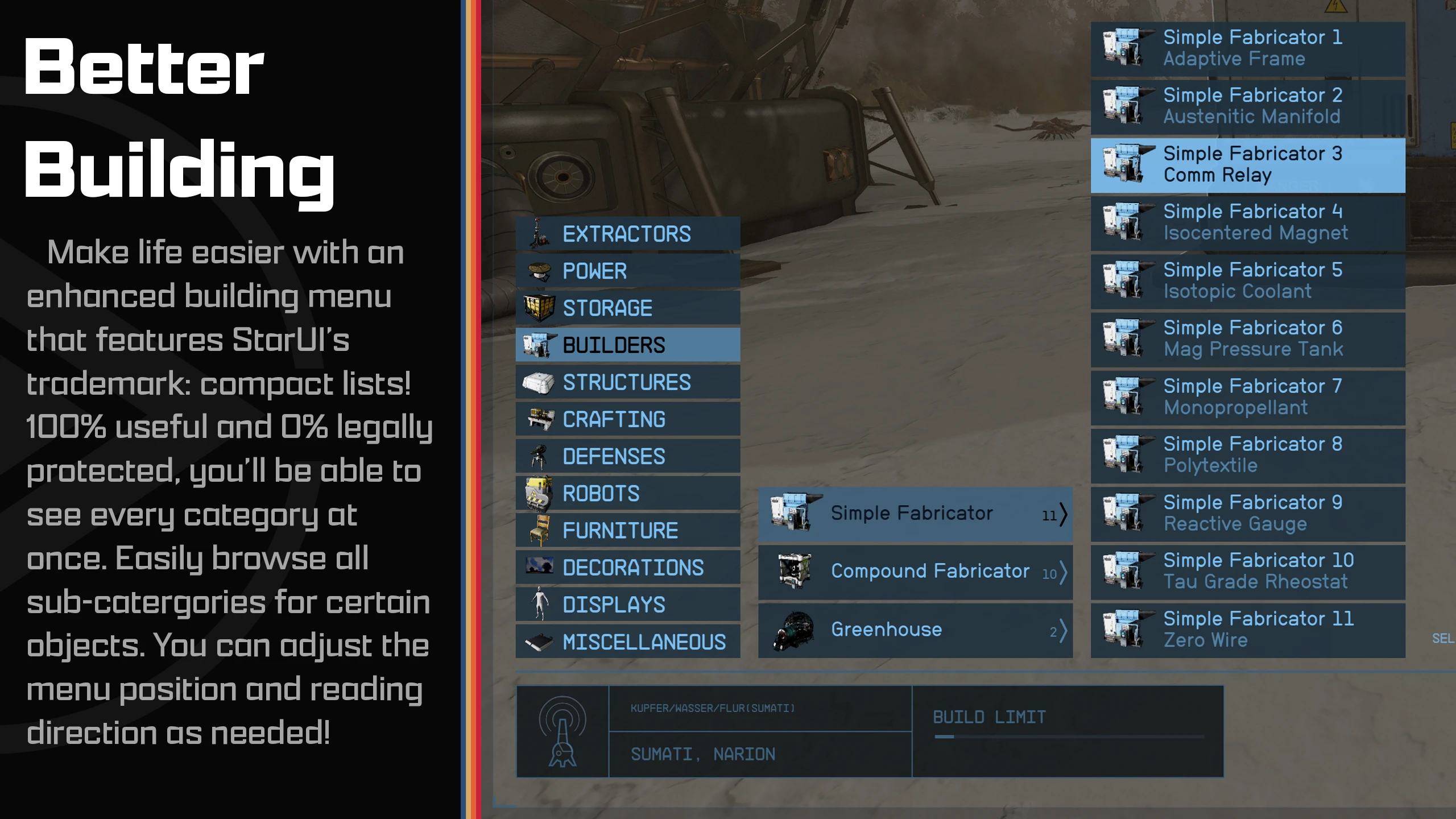
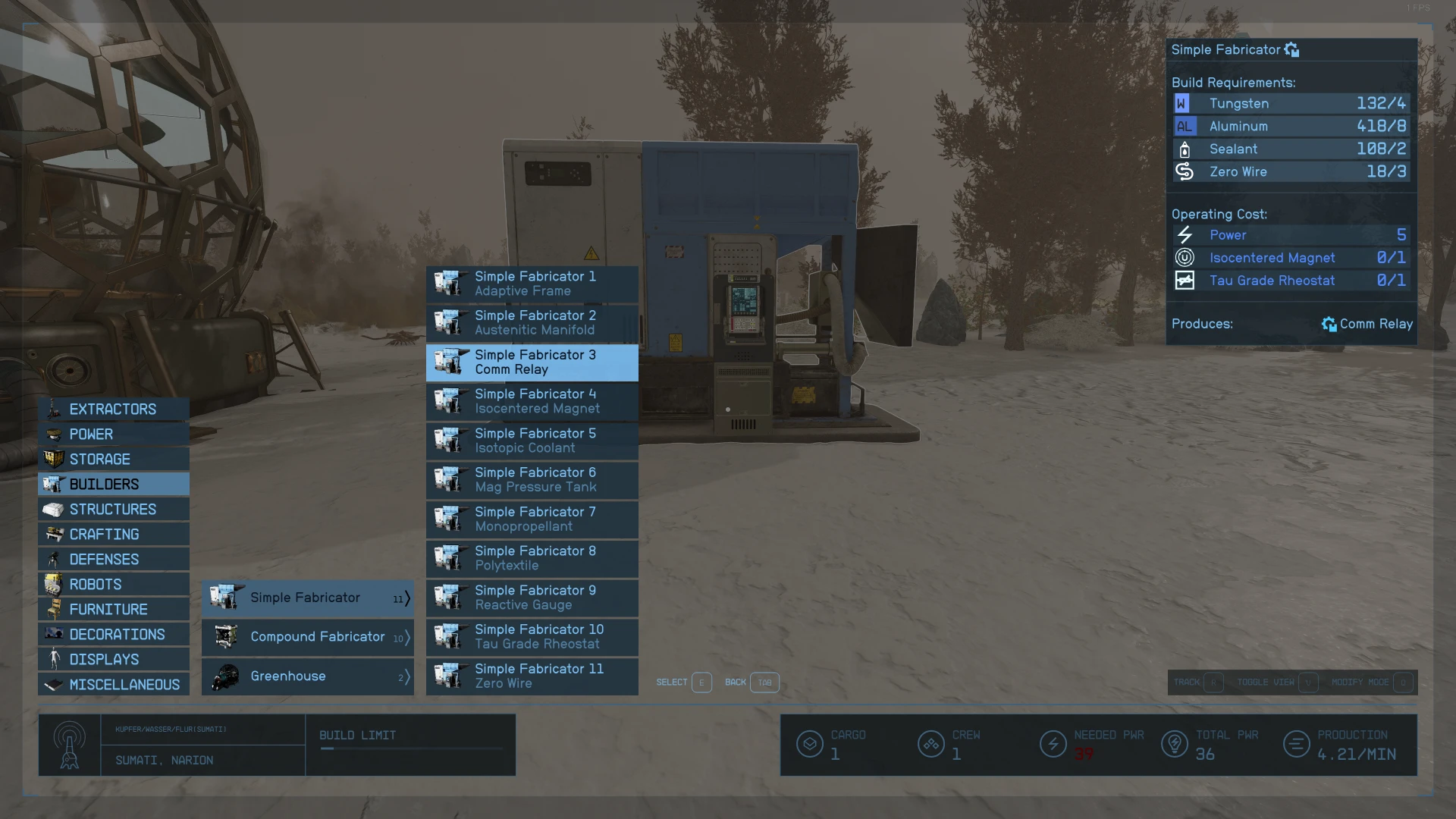
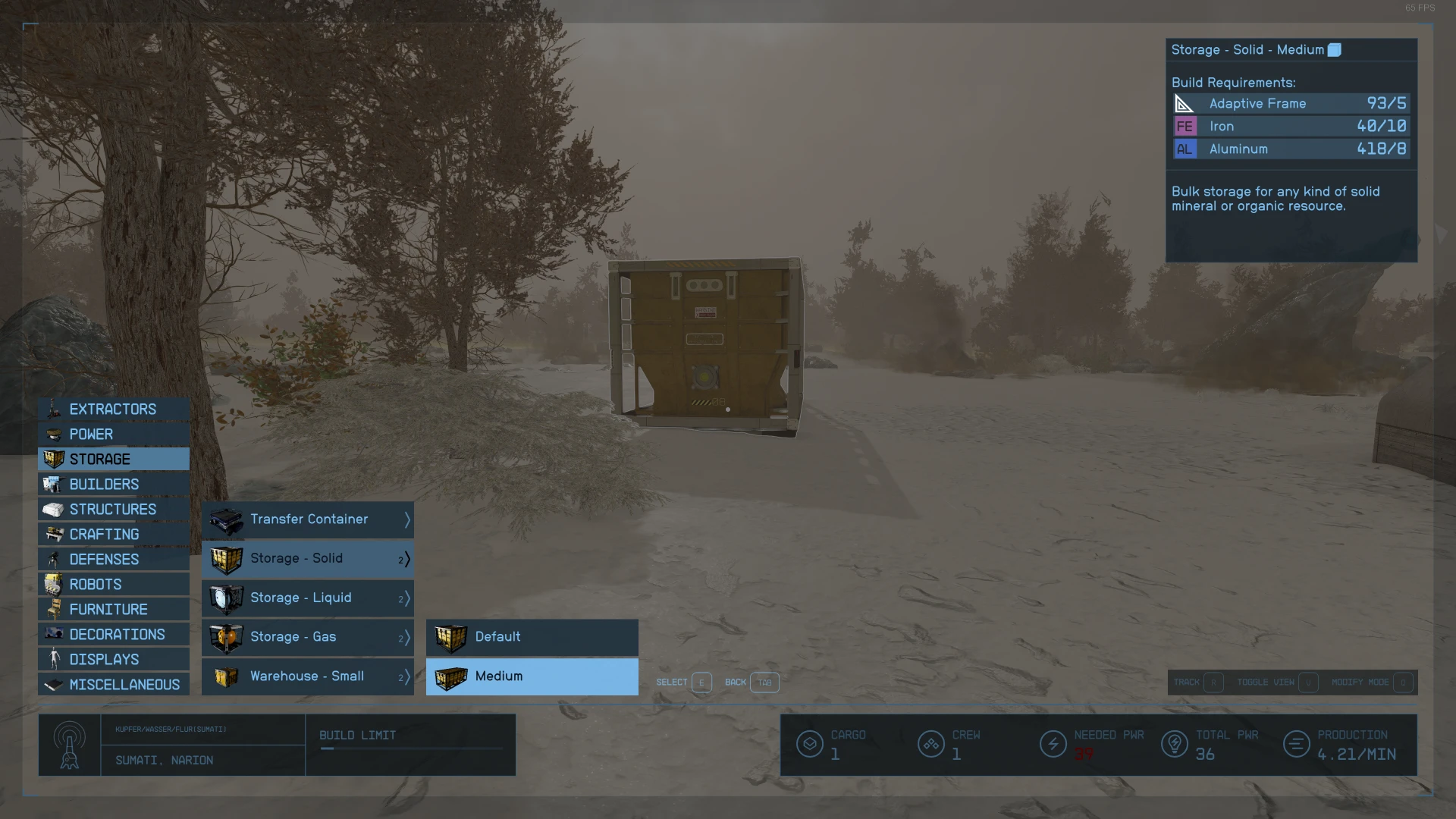
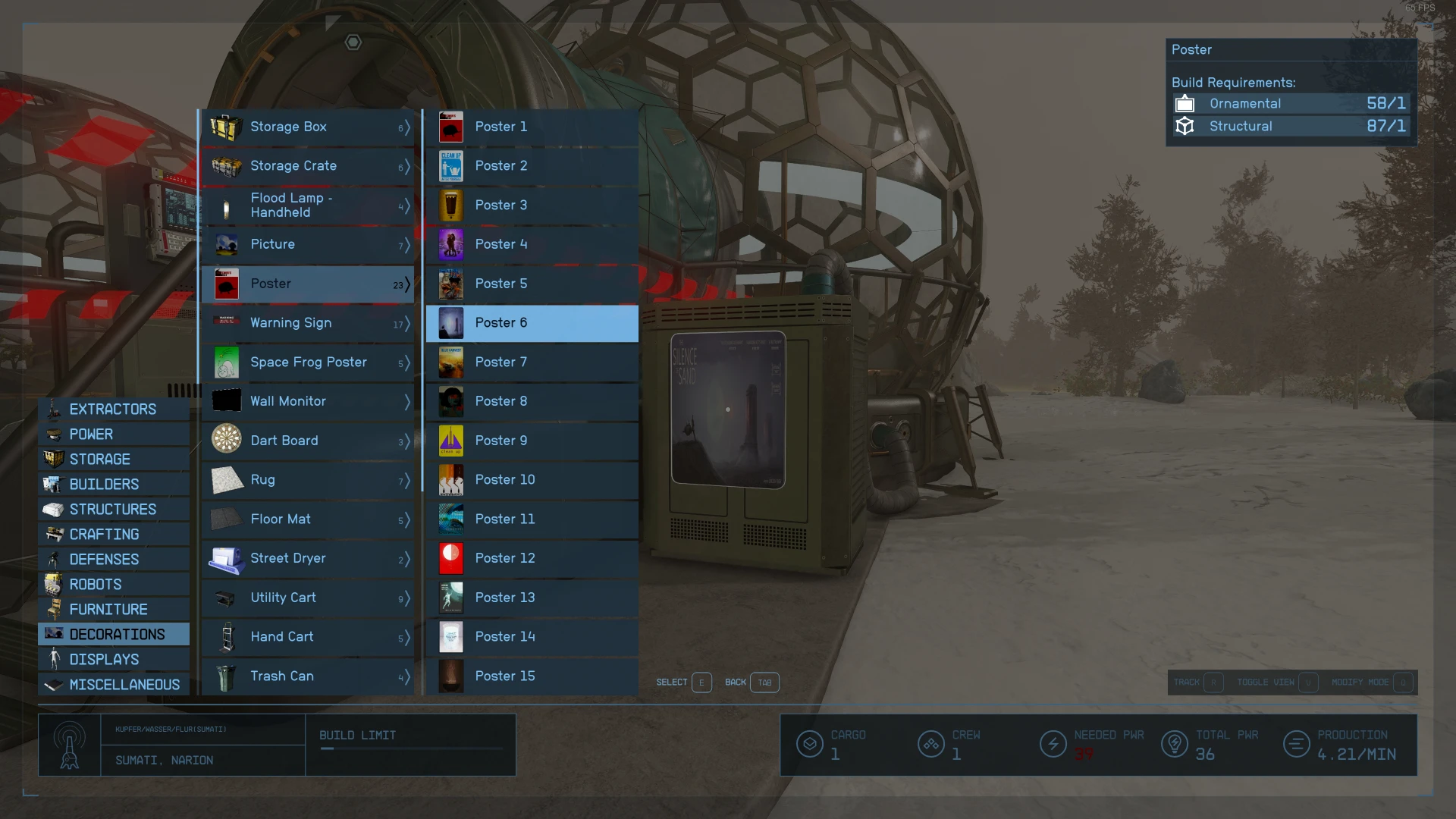
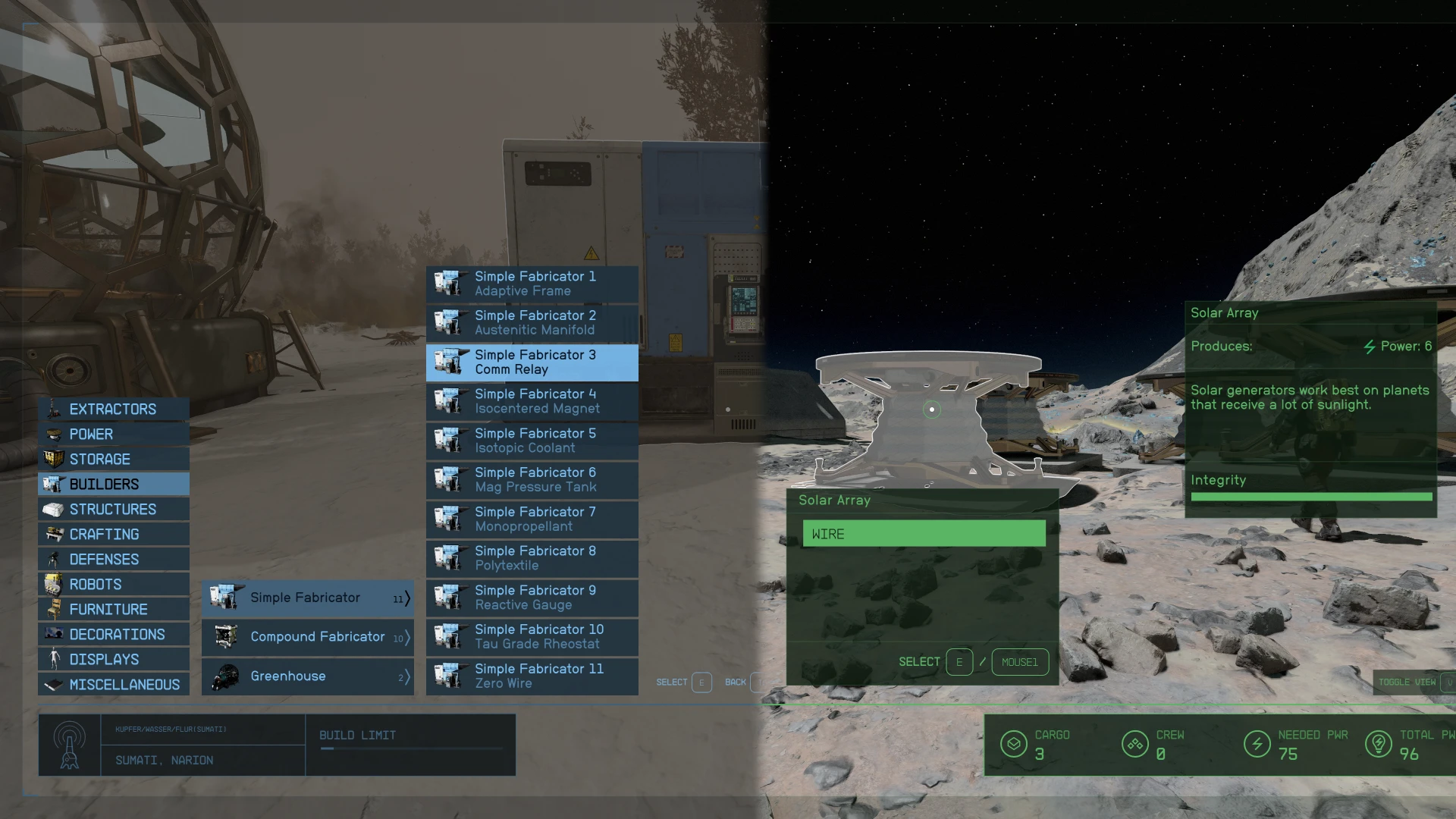
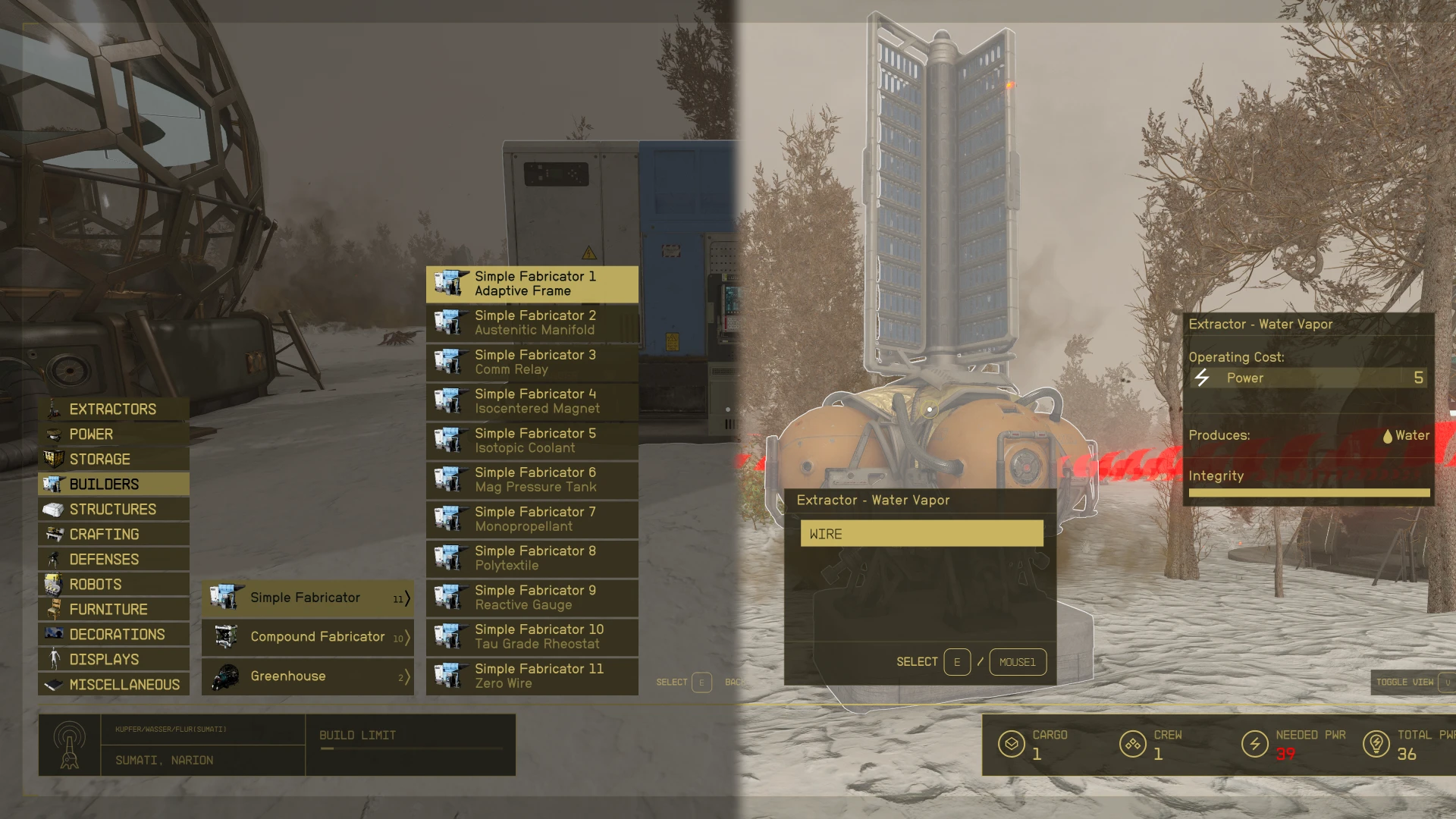
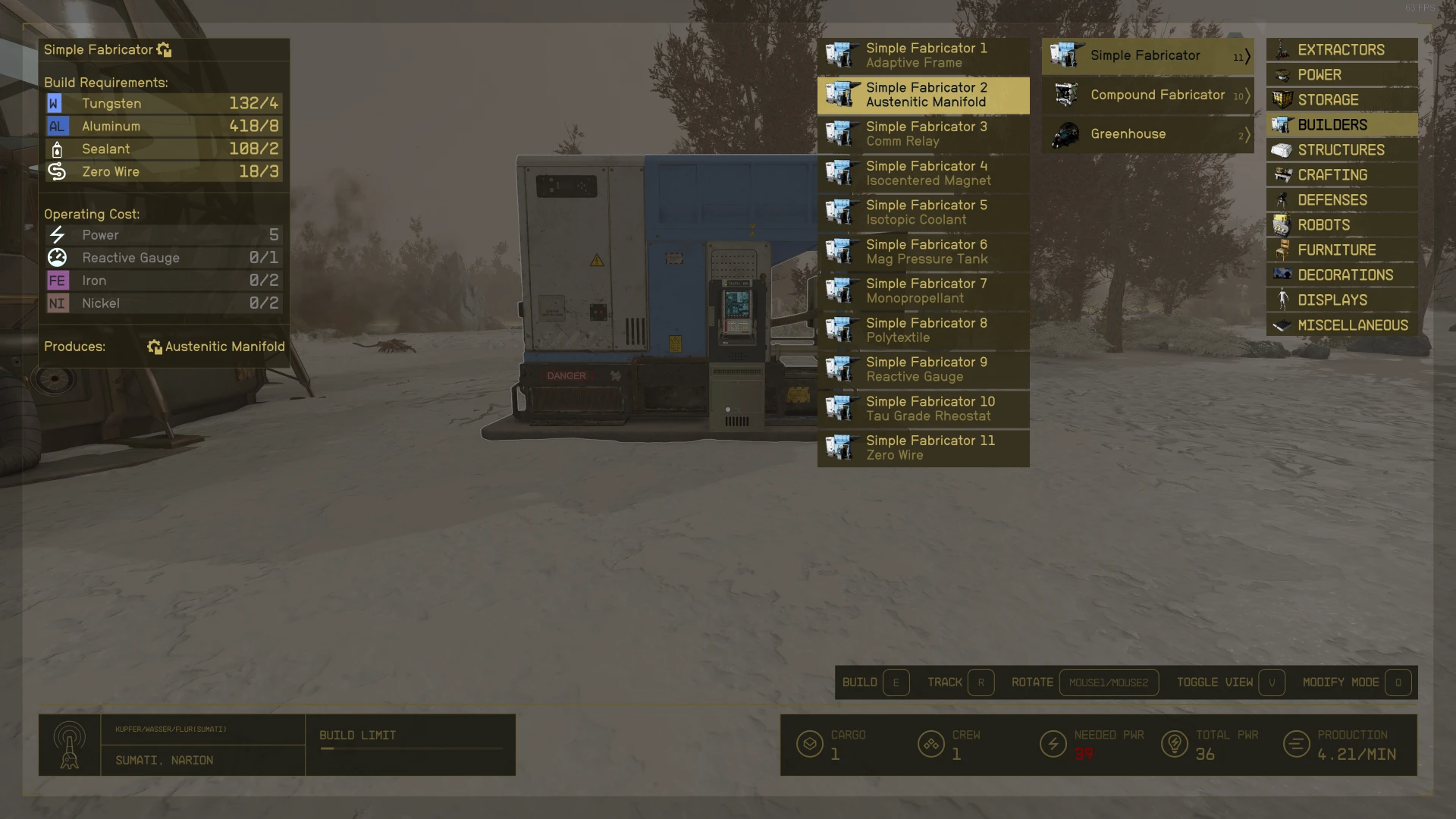
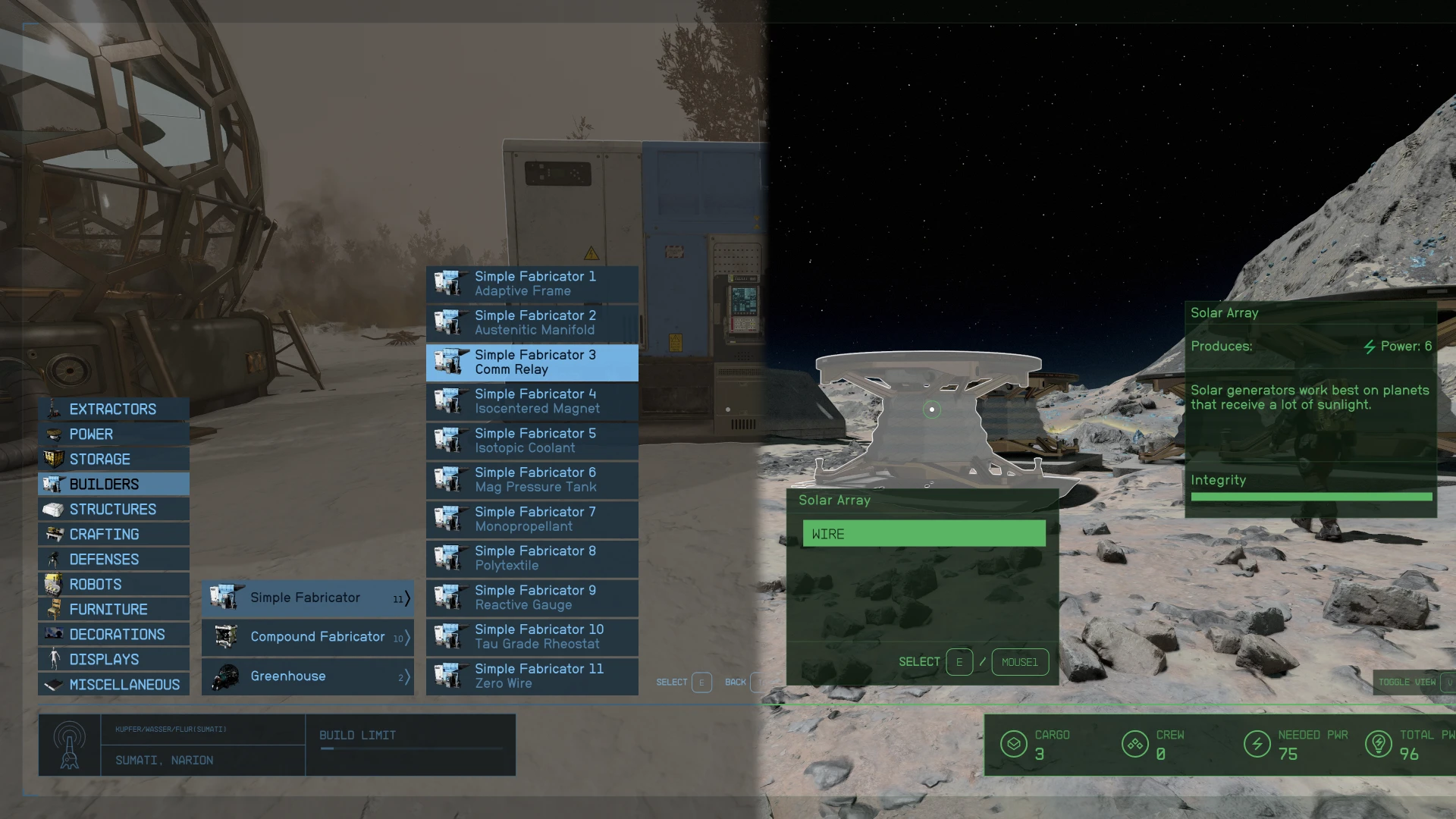
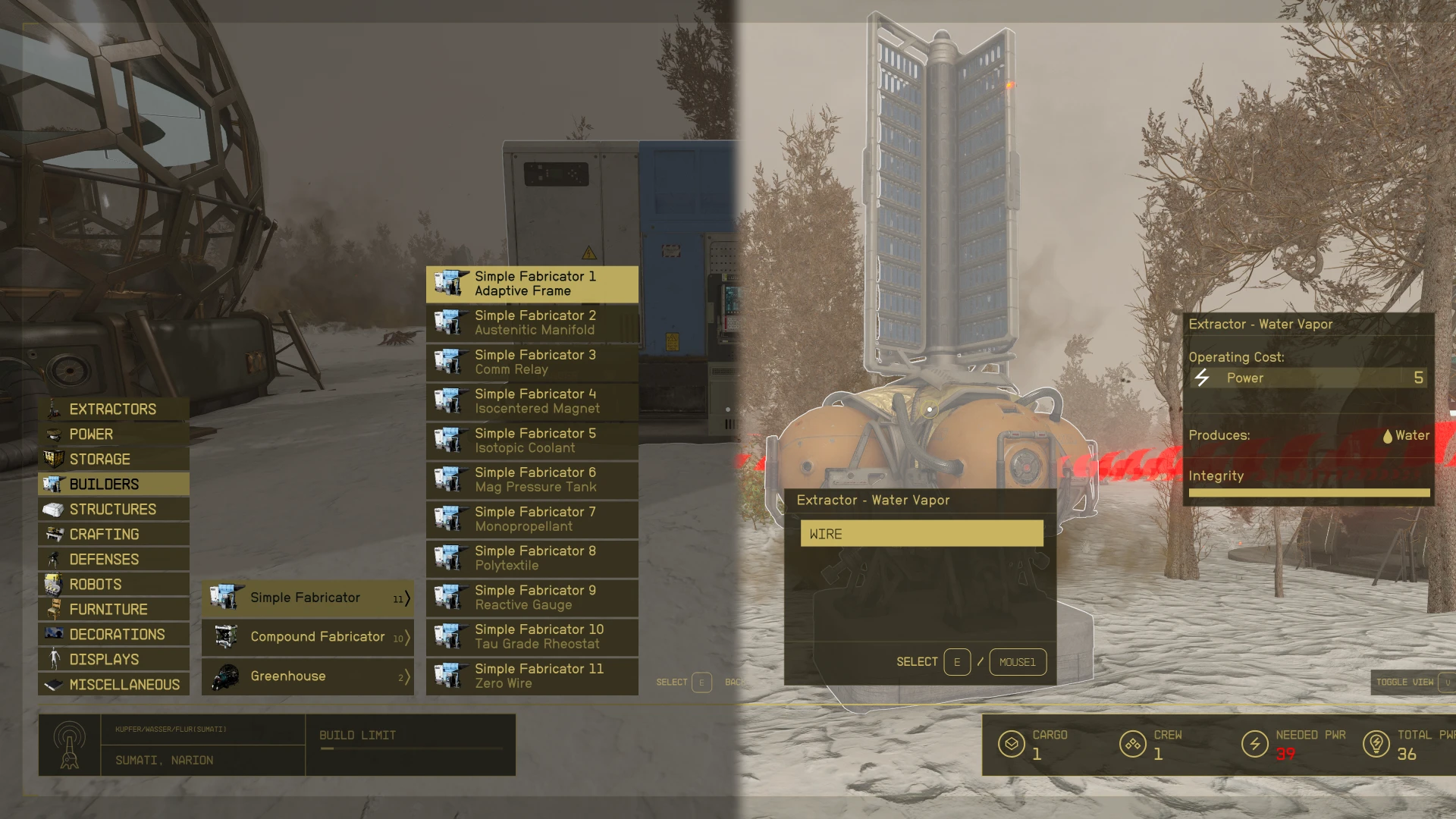
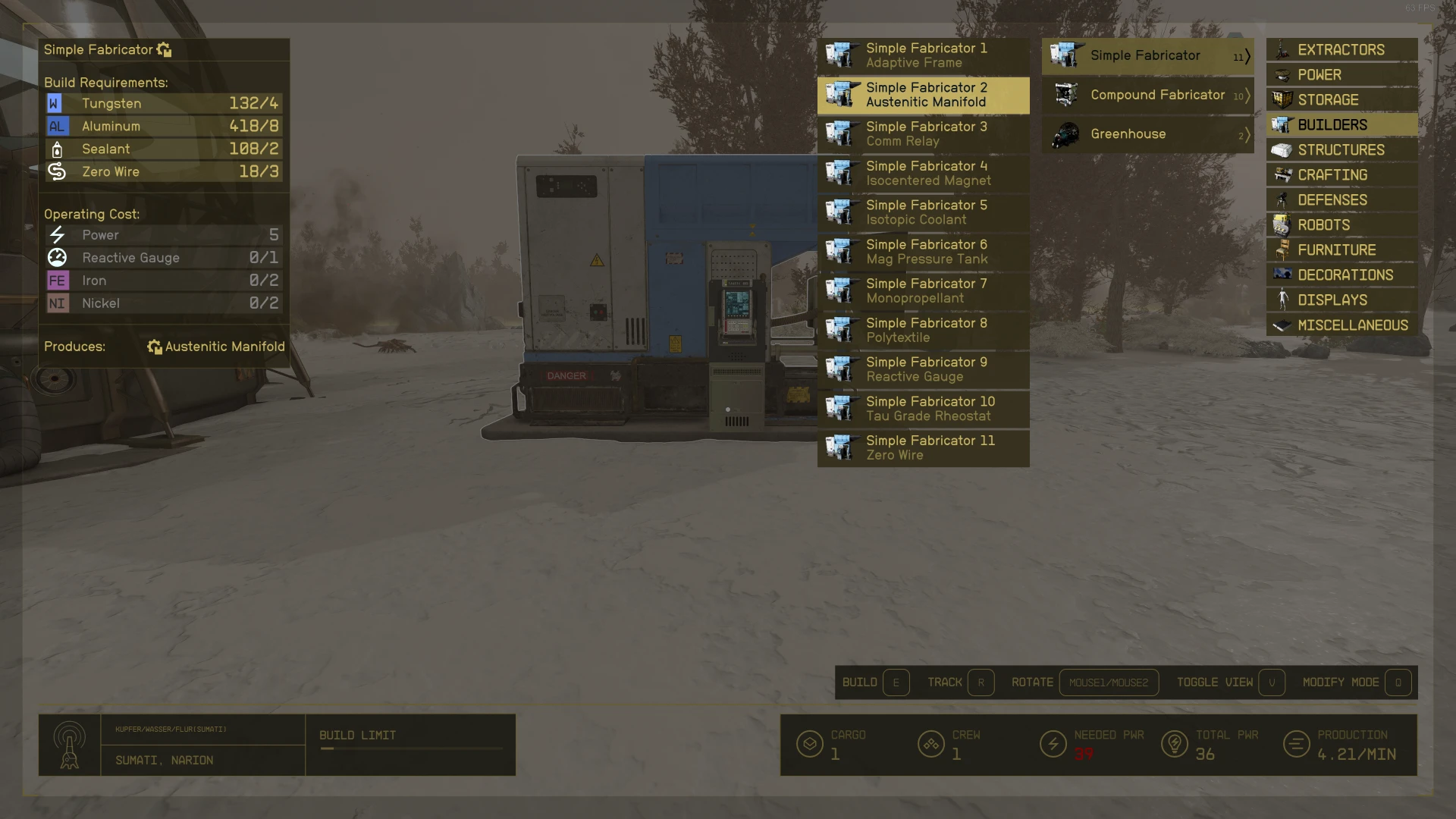
Improves the outpost interface for PC. Adds a convenient build menu with separate lists for category, building, and variation (requiring only 4 keys to navigate instead of 8). Updates key bindings to match most other interfaces.
Enhances the outpost interface for PC. Adds a convenient build menu with separate lists for category, structure, and variant (requiring only 4 keys to navigate instead of 8). Adjusts key bindings to match other interfaces. Adds an inspection label and button hints at the cursor. Plus many other quality-of-life improvements.
Much improved build menu with separate lists for categories, buildings, and variants.
You no longer need 8 keys for the build menu navigation - 4 keys are enough
Shows the produced item as subtitle for fabricators
View all variants in an easy-to-navigate list
Smarter variant naming – e.g., "Extractor - Iron - Commercial" appears as "Commercial" in variant lists.
Numbered naming for equal named items - e.g. "Poster 1", "Poster 2" instead of "Poster" for all
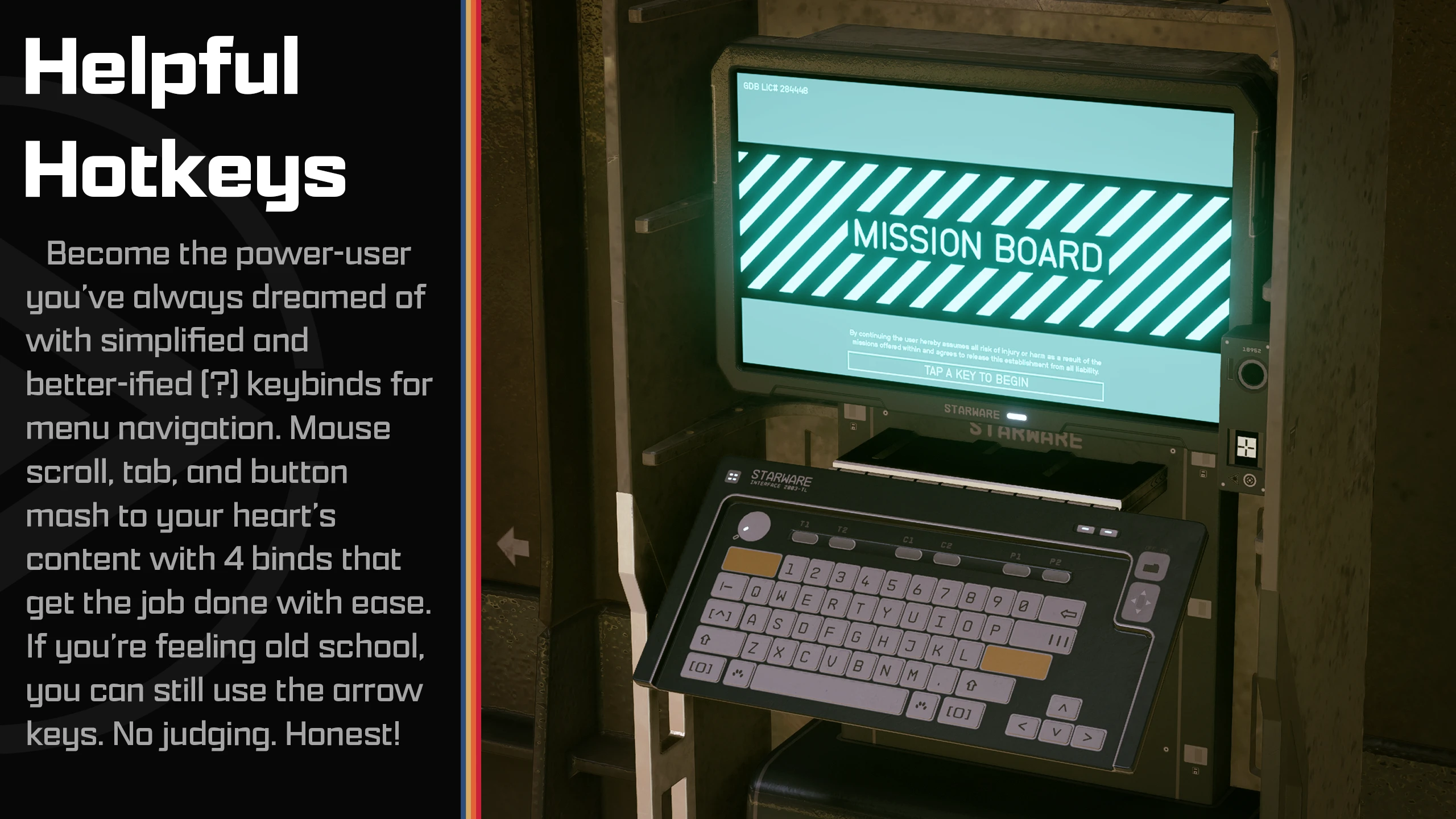
Changed the basic UI key handling to match other interfaces — e.g., TAB is now back/exit, and change mode is now "Q" or "Left Shoulder".
Added comfort keys to several interfaces - You can now use Mouse1 in addition to E to select an item from action cards, such as wiring. In wire mode, you can also press Mouse1 where previously only E worked.
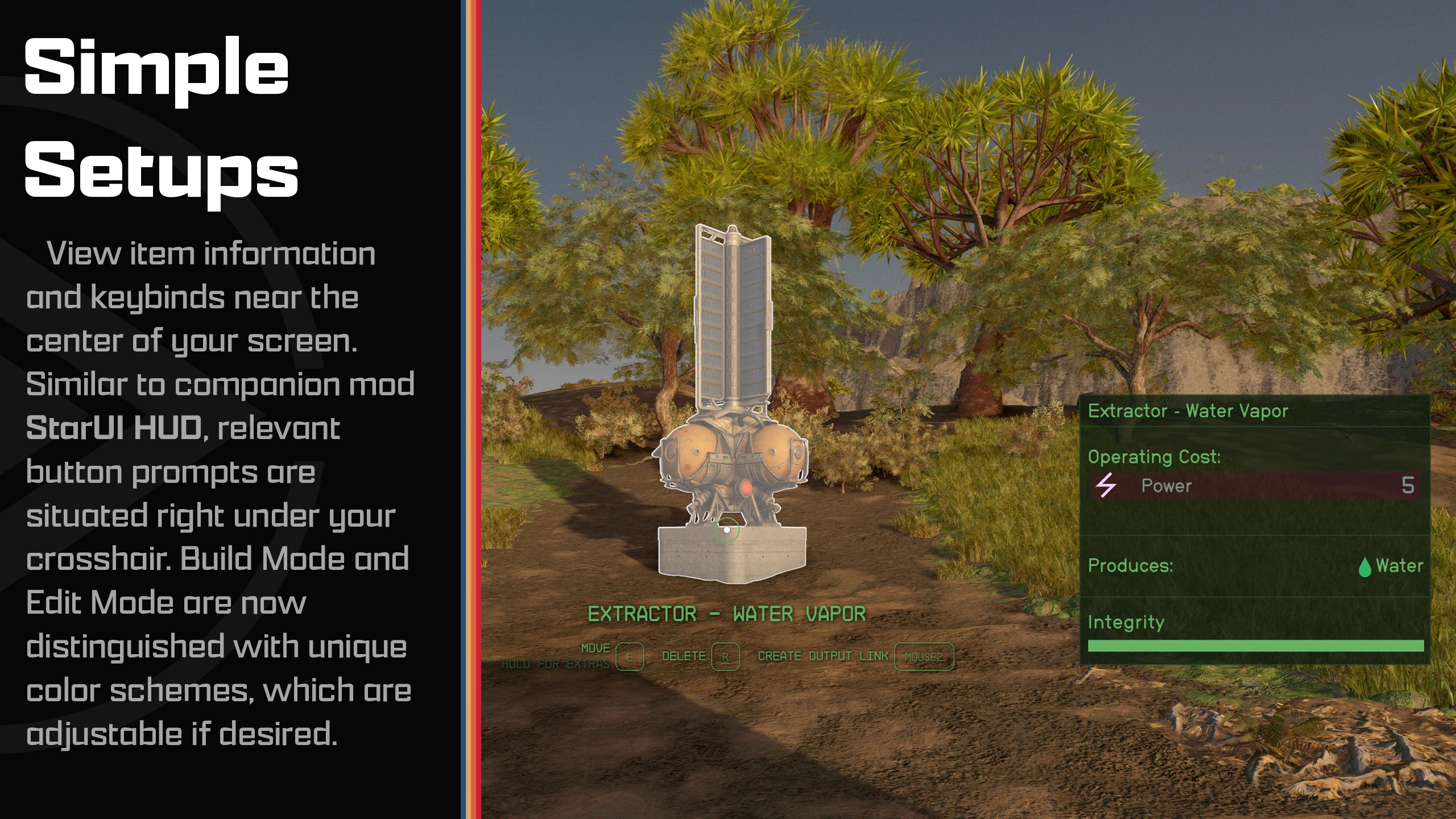
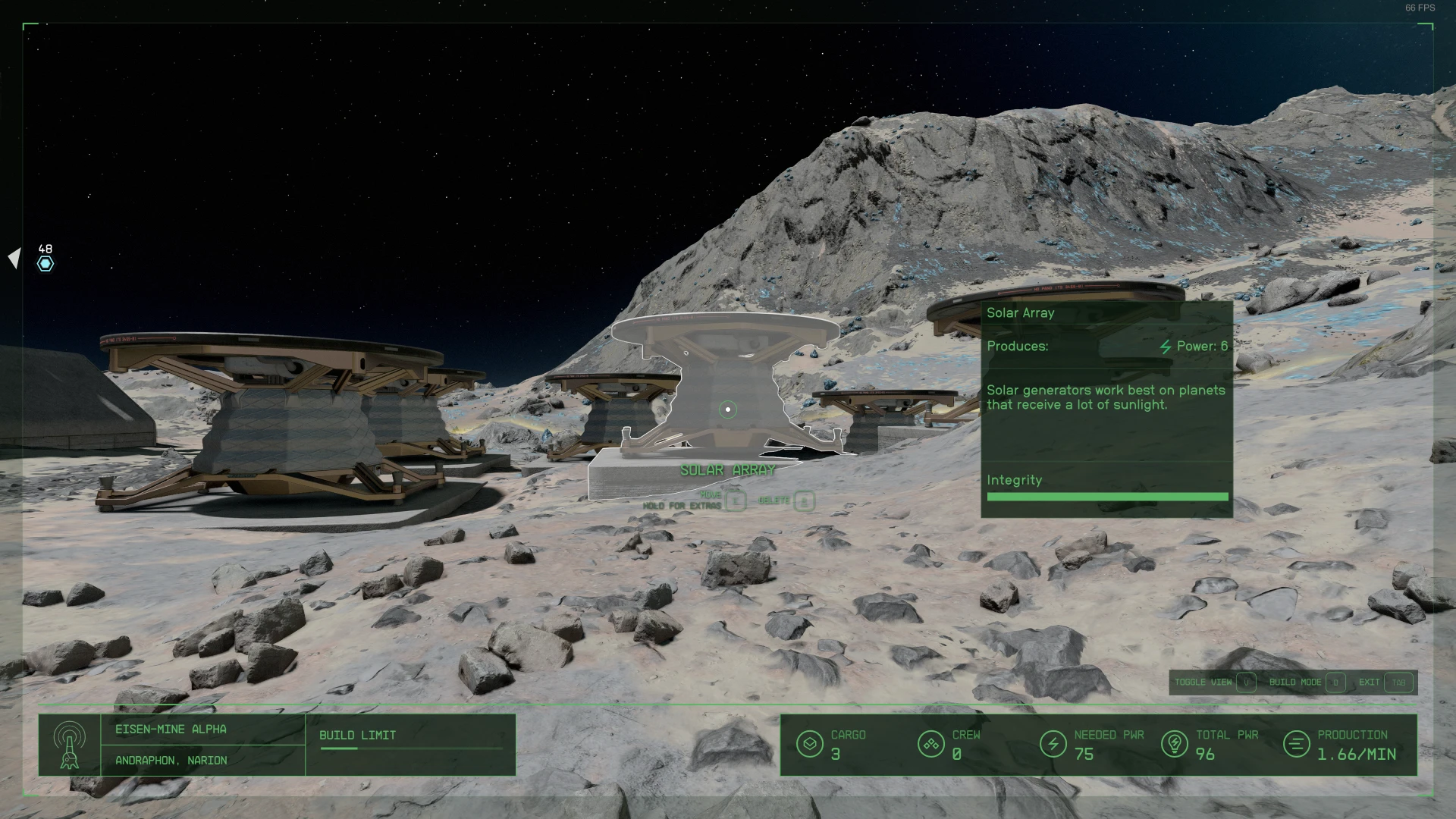
**New inspect label** – Shows what you are viewing directly under the crosshair.
New crosshair buttons – See what you can do right under the crosshair
Build and inspect modes now use different colors — so you always know which mode you're in!
Allows full customization of every widget. Adjust the color, size, and position individually for each widget. You can also hide any widget if you prefer.
Option to disable open/close animation
Available in 30, 60 and 120fps
Comes with three pre-defined presets: Author's Choice, Author's Choice (default color) and Vanilla Extended
Fully customizable - Includes an StarUI ConfiguratorProfile, so you can easily adjust your outpost interface.
Safe to install/remove at any time! Doesn't affect your save game and won't prevent your ability to get achievements!
Multilanguage - Supports all languages out of the box
Simply install with Vortexor Mod Organizer 2 (for manual installation open the spoiler below)
Enable Archive Invalidation in your INI
It's just one click in. BethINI (Enable "Load Loose Files" and save)
Copy the folders Interface\ and StarUI Configurator Extract the files from the zip into your Starfield\Data\ folder (where the ba2 files are) - ignore folders fomod and Optional
For some users the folder may not work. Copy the files to your Documents\My Games\Starfield\Data\ folder in that case (create) Data\ if it doesn't exist)
Choose one of the three presets from the sub-folder. StarUI Outpost Presets 并将INI文件内容复制到一个新文件中 StarUI Outpost.ini in Interface.
(Optional) 30fps or 120fps version: After completing the steps above, copy the files from the corresponding subfolder. Optional and overwrite the existing ones.
Use the StarUI ConfiguratorTo configure any setting in this mod with an easy-to-use graphical interface. Or consult the well-documented INI file. StarUI Outpost default.ini and adapt it to your liking!
Presets The mod comes with three presets: Author's Choice, Author's Choice (default color) and Vanilla Extended. Click for a preview:
Spoiler:
Show
(Click to enlarge image)
Author's Choice
Author's Choice (default color)
Vanilla Extended
**Tips**
You can switch to another preset at any time. The presets are copied to a folder. Interface\StarUI Outpost Presets. Simply copy the INIs content to your StarUI **Outpost** (default).ini
Copy the file StarUI **Outpost** (default).ini and rename it to StarUI Outpost.ini. This INI file will also be read and won't be overwritten by mod updates!
When you edit settings: simply closing and reopening the outpost interface will load your changes!
INI Settings File Here's a preview of the Author's Choice preset INI:
**Spoiler:**
Show
[StarUI Outpost] ; Skip the interface open and close animation bInstantOpenClose = 0 ; The default screen padding (space from the border). Will be used as the element's fScreenPadding if no other value is set. fDefaultScreenPadding = 50
; Colors (default vanilla outpost color: 201, 181, 97) ; Default interface color in build mode DefaultColorBuild = 122, 192, 244 ; Default interface color in inspect mode sDefaultColorInspect = 90, 180, 100
[BuildMenu] ; New Build Menu with collapsed lists added by StarUI
; Add a shadow to the background while in the build menu iMenuBackgroundShadow = 50
; ---- Categories ---- bCategoriesShowIcon = 1
; ---- Buildings ---- ; Display a building icon bBuildingsShowIcon = 1 ; Add the number of sub-variants to the buildings list bBuildingsShowVariantsCount = 1
; ---- Variants ----
; Show an icon for the variant bVariantsShowIcon = 1 ; Add Numbers, e.g., Poster 1, Poster 2 bVariantsAddNumberToEqualNamed = 1 ; Remove common prefixes in the submenu. e.g. "Extractor - Iron" and "Extractor - Water" will be displayed as "Iron" and "Water" Remove common prefixes from variants = 1 ;Replaces the first variant in a series with "Default". e.g "Extractor - Water" and "Extractor - Water - Commercial" will be displayed as "Default" and "Commercial" Replace common prefix with default = 1 ; Adds the produced item to the variants as subtitle (e.g., for Builders > Fabricator) bVariantsAddProducedItem = 1 ; Will skip the variants list if only one variant is available bVariantsSkipListForSingle = 1
; ---- Position ---- fPositionX = 0 fPositionY = -113 Screen Anchor = BottomLeft ; Define in which direction the list should expand. Values: TopLeft, TopRight, BottomLeft, BottomRight Direction = TopRight
[Frame] ; The outer Frame around the screen ; Enables or disables the element bEnabled = 1 ; Set a new color modified sColor = ; Force the color (removes any color tones or brightness) bForceColor = 0 ; Change the position XY (Absolute screen values when no anchor is used; relative position change when a screen anchor is used) Position X = 0 fPositionY = 0 Rescale (resize) the element fScale = 100 ; Rotate the element fRotation = 0 ; Change the opacity (in percent) fOpacity = 100 ; Move the element to a screen edge. Screen Anchor = ; Override the screen padding fScreenPadding = 0
[ActionCard] ; Contains more options, like when you open the special options on buildings to build a cable Enabled = 1 sColor = bForceColor = 0 ; Vanilla: 215, 130 fPositionX = 0 fPositionY = 330 fScale = 100 fRotation = 0 fOpacity = 100 **sScreenAnchor** 50% 50% fScreenPadding = default
The mouse cannot be used in this interface because the game engine fully disables it.
While selecting a building, the 3D item in the background is still visible. Unfortunately, the engine doesn't allow hiding it in build mode.
The key bindings for outpost are really weird. Carefully change the default key binds and use the original key settings for the best experience.
StarUI Inventory - Improves all inventory screens for use on a PC. Many Quality-of-Life features and completely customizable. StarUI HUD - Customize your HUD. Relocate, resize, and recolor widgets. Item tag icons, loot list item cards, Loot-O-Meter, and many more features. StarUI Workbench - Upgrades all workbenches with columns, comparison, compact design, personalized layout, quality-of-life features, and more. StarUI Outpost - Enhances the outpost UI with a new construction menu, improved key controls, and numerous quality-of-life features. StarUI Ship Builder - Improves the ship builder interface with sortable columns, category and variant lists, along with various quality-of-life features. StarUI Configurator - Configure all StarUI mods in a well-aligned graphical interface with many helpful functions.
Bethesda for making another great RPG! Cala For making the awesome teaser images! Collective Modding Discord - For morale support, testing, ideas, and more! (Check it out!) To the xEdit Team for their outstanding ongoing work The NexusMods community
And a big thanks to all the engaged beta testers in the #starui channel (alphabetical order, if I miss one, please let me know): afkafka **Ajantaju** ivensauro JohnnyLX91 maarlebw Thesparalius
This tool is provided by the third party [bufftool]
Download Mods For Free
Install LagoFast, start Starfield and play with the mods you love.
We use cookies to make interactions with our websites andservices easy and meaningful. For more information aboutthe cookies we use or to find out how you can disable cookies, click here.